Using Scout Control Panel‘s Sentry security feature

What is Sentry?
Sentry is a Scout Control Panel security feature that helps defend against Denial of Service attacks, unwanted crawling by bots or malicious behaviour (e.g. spamming, carding, fraudulent orders, vulnerability scanning).
Sentry detects potentially unwanted automated activity by checking the behaviour of the visitor’s browser.
If you are familiar with Cloudflare’s ecosystem, it’s comparable to Cloudflare’s “Under Attack” mode, but it does not require any additional setup.
When should Sentry be used?
Sentry is a high level of security and should only be used in an emergency situation, but it can also be used as a long-term security enhancement with careful configuration.
If an attack cannot be easily blocked, Sentry can help stabilise the site or stop the unwanted activity until further protections can be put in place.
Enabling Sentry is recommended for the following situations:
- Aggressive number of requests from many different IPs (e.g. a Denial of Service attack or unwanted crawling)
- Fraudulent orders being placed through your website
- Form spam (e.g. contact or registration forms)
When should be Sentry not be used?
Sentry shouldn’t be used in the following situations:
- Legitimate but aggressive crawling by a friendly bot (e.g. Google)
- An attack by a single or limited range of IP addresses
Legitimate crawling
It’s possible for legitimate crawlers (e.g. Google, Bing, ChatGPT etc) to become “trapped” in your site’s dynamic features such as product filters, checkout process or calendars – anything where there are many permutations or combinations.
As Sentry automatically trusts friendly bots, it won’t block this activity and we recommend addressing this behaviour through robots.txt instead.
Small or basic attacks
If there is an attack from one or a limited range of IPs, it’s simpler to block the IP addresses under Security in Scout.
Can Sentry cause issues?
Yes, Sentry will check all requests and as designed, will not allow automated requests through unless it’s a trusted source.
Primarily this will impact your site’s integrations, anything that connects to your site’s API. For example, when a customer makes a payment on your site, your payment provider may send a notification to your site – this request may be blocked by Sentry.
What is a trusted source?
To help improve Sentry’s “out of the box” compatibility with your website, we have curated a list of trusted sources
- All major search engine crawlers – Sentry should not affect your search
- All major social networks
- Scout‘s Trusted IPs (under Security)
- Payment gateways
- Stripe
- PayPal
- Opayo / Elavon
- Brevo
- Royal Mail Click & Drop
- Jetpack
- CDNs
- Cloudflare
- BunnyCDN
- Fastly
- Monitoring services
- Uptime Robot
- StatusCake
- Pingdom
- cloudabove‘s monitoring
If you feel something is missing from Sentry’s trusted source list, please don’t hesitate to contact us at cloudabove.com/contact-us and we’ll be happy to consider adding your recommendation to Sentry.
How do I add exemptions, or rules?
If Sentry is blocking something it shouldn’t, you can currently make the requests exempt by creating rules that match against the visitor’s IP address, page (URI), User Agent or a query string argument.
- Login to the Scout Control Panel
- Navigate to Sites and select the site
- Select the Security tab
- Under the Sentry section, select the Advanced tab
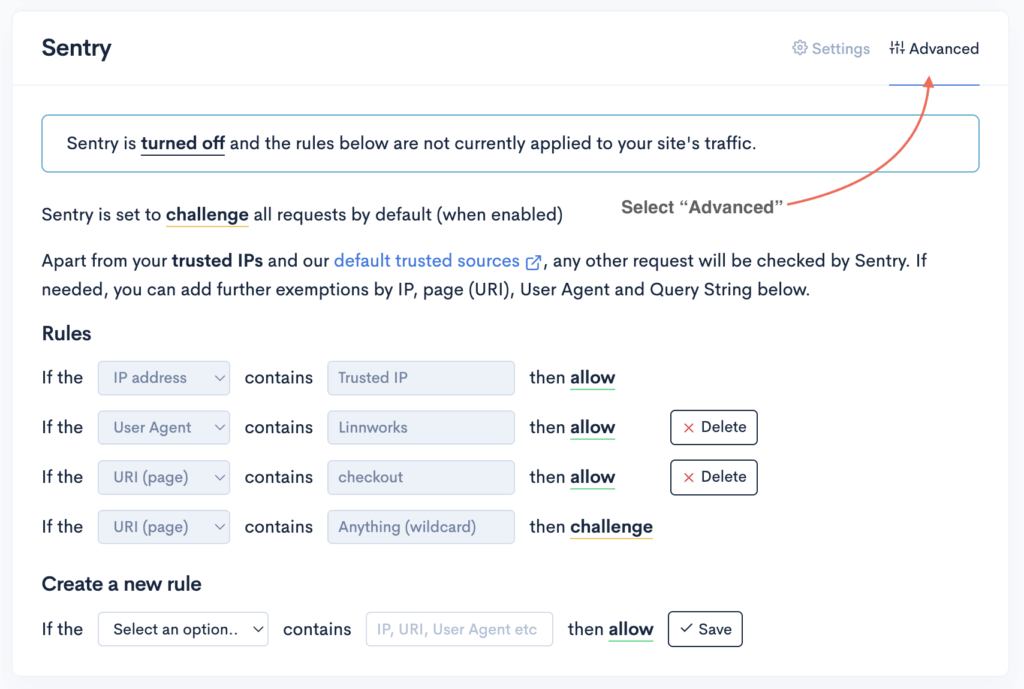
- Under Create a new rule, select the rule type
- IP address – allow an IP (e.g. 198.51.100.5) or range IP addresses (e.g. 198.51.100.0/24)
- Country – allow or challenge based on the visitor’s country
- URI (page) – allow or challenge a page (e.g.
checkoutorapi.php) - User Agent – allow a browser or service identifier
- Query string – allow a specific query string argument
- Enter the IP, URI, User Agent or argument that should be matched against the rule
- Click Save
How to enable Sentry
- Login to your Scout Control Panel
- Navigate to Sites and select a site
- Select the Security tab and scroll to the Sentry section
- Select a Mode and click Update
Modes
Depending on the complexity of the attack, Sentry has multiple modes (or security levels) that can be used:
- Transparent – invisible to the visitor, but not as effective
- Balanced – visitor sees a brief verification message before automatically redirected to the site
- Full – visitor is required to complete a CAPTCHA before proceeding
- Debug – logs requests that would be challenged (nothing is blocked)
You can easily change between modes and we recommend starting on Transparent and allowing approximately 2-3 minutes for the server to stabilise before trying Balanced.
Full is the least user friendly and should only be used as a last resort.
Default action
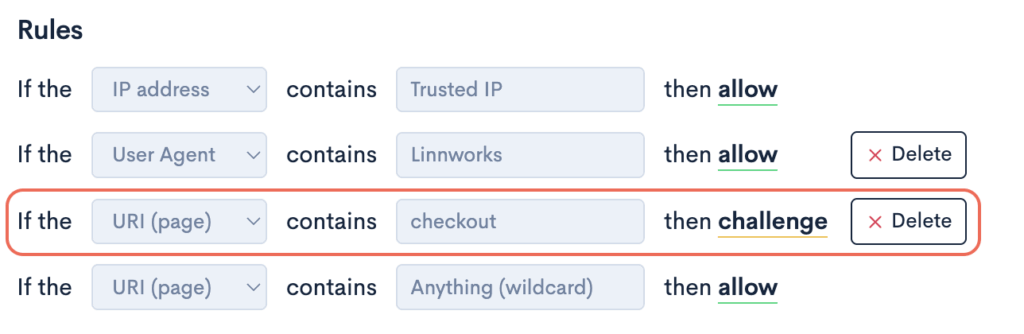
By default, Sentry will challenge all requests (unless a trusted source), but in some circumstances, you may only want to protect specific pages.
Toggling the Default action will allow all requests, allowing you to specify which pages should be protected e.g.
How to disable Sentry
- Login to your Scout Control Panel
- Navigate to Sites and select a site
- Select the Security tab and scroll to the Sentry section
- Select a Disabled from the Mode menu and click Update