Analyzing Site Disk/Storage Usage on Scout

Running out of storage? Need to find what’s eating up your disk space? SSH and the ncdu command make it easy to see exactly which files and folders are the culprits.
What You’ll Need
SSH access to your site — You’ll connect via terminal or SSH client.
Terminal or SSH software:
- Mac/Linux — Use the built-in Terminal app
- Windows — Download free SSH software like PuTTY
Step 1: Connect via SSH
Open your Terminal or SSH app and enter your SSH connection details. You can find these in the Files section of Scout (we have a separate guide on connecting to SSH if you need help).
Enter your password when prompted.

Step 2: Run NCDU
Once you’re logged in, run this command:
ncduNCDU is a command-line tool that scans your files and folders, then displays them by size—largest first. It shows sizes in megabytes or gigabytes so you can quickly spot what’s taking up space.
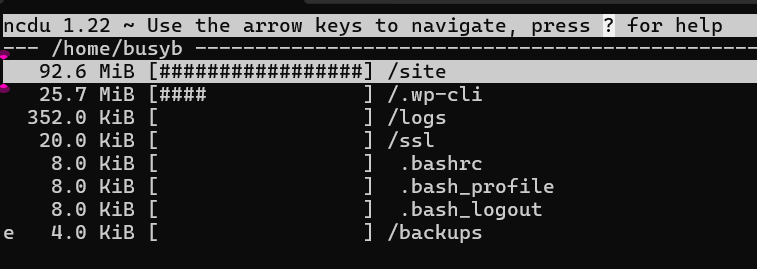
Step 3: Navigate and Explore
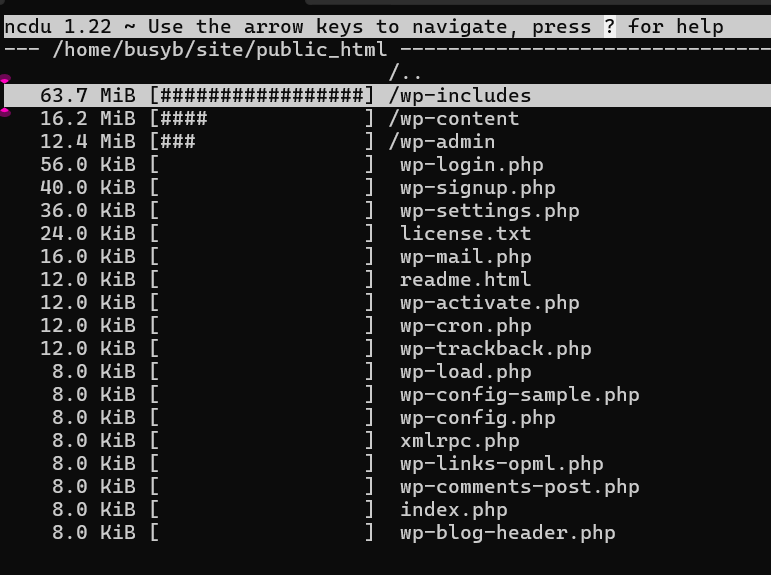
Use your arrow keys to move around. Press Enter to go into a folder and see what’s inside.
For example, go into your site folder, then into public_html to see your website files. This is where you’ll often spot unexpected folders or old backups taking up space.
Delete Unwanted Files
Found something you don’t need? Select it and press D to delete.
A confirmation prompt will appear – confirm by pressing Y.
Common Culprits
Keep an eye out for:
- Old backup folders – Often much larger than they need to be
- Cache directories – Build up over time and can be safely cleaned
- Temporary files – Usually safe to remove
- Old plugin/theme folders – If you’ve deactivated them, they can go
Pro tip: Regular storage audits prevent emergency cleanup later.