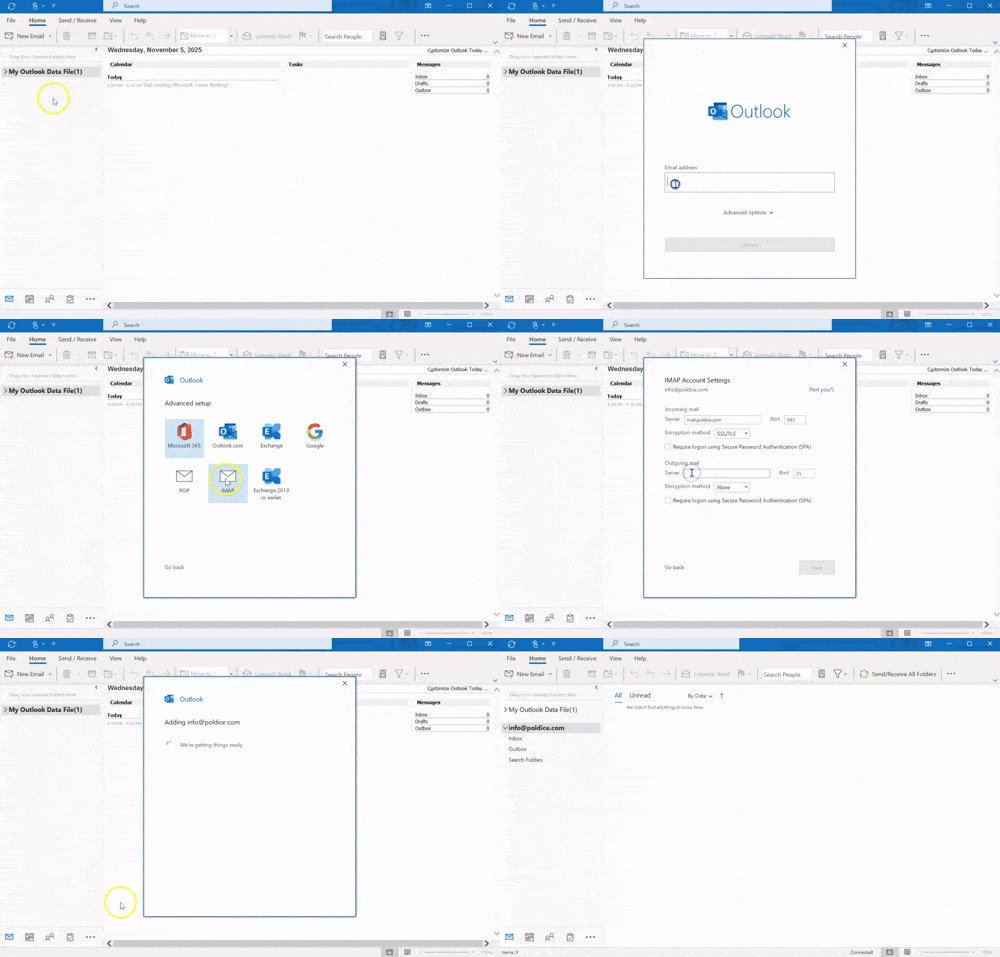
Adding your email to Microsoft Outlook [Classic]

Adding your email account to Microsoft Outlook allows you to manage your emails, calendar, and contacts all in one place. This guide walks you through the steps to get started using the Outlook App for your emails.
What you require:
Before you begin, make sure you have:
- Your full email address (e.g., yourname@yourdomain.com)
- Your email password
- Incoming and outgoing mail server details
Steps To Adding your email
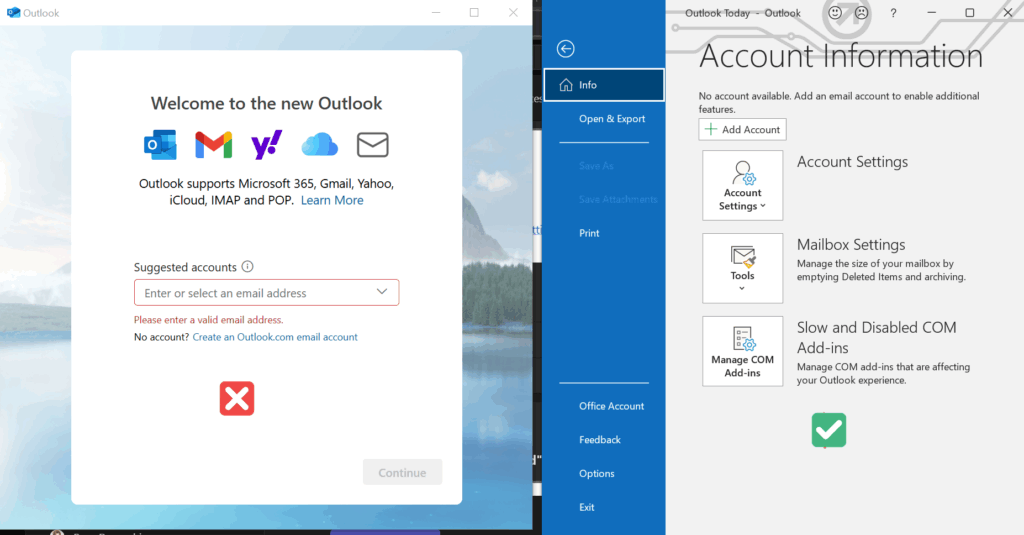
1. Open Outlook Classic App
Launch Microsoft Outlook on your computer. Note that the Classic Outlook is the Desktop Application from M365 and differs slightly from the New Outlook for Windows from the Microsoft store. The Microsoft outlook Classic is the one on the right.
2. Go to Account Settings
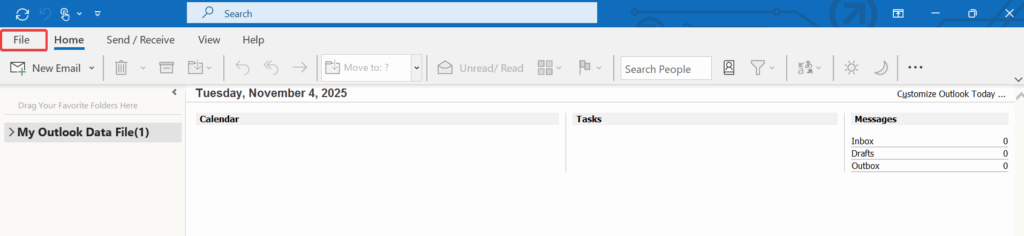
- Click File in the top-left corner.
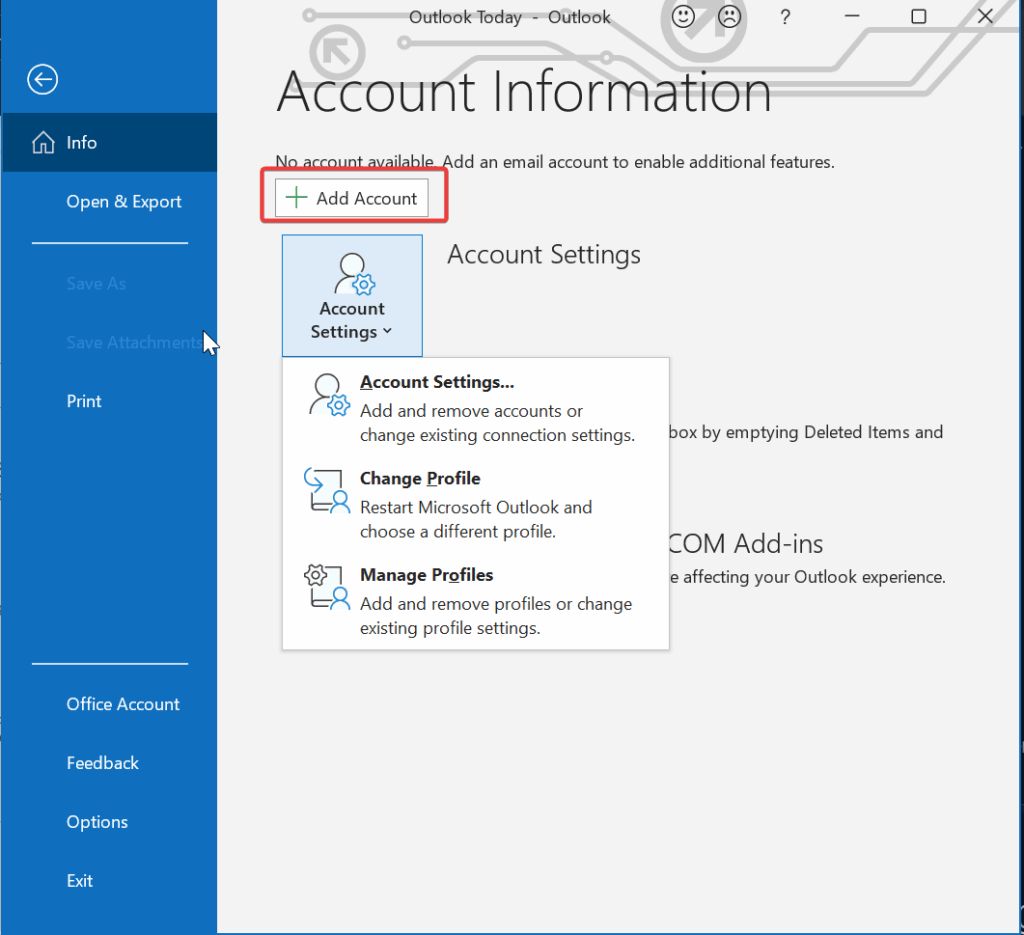
- Click the Add Account Button
- You can also use Account Settings, then click Account Settings again from the dropdown to add and remove Accounts.
3. Add a New Account
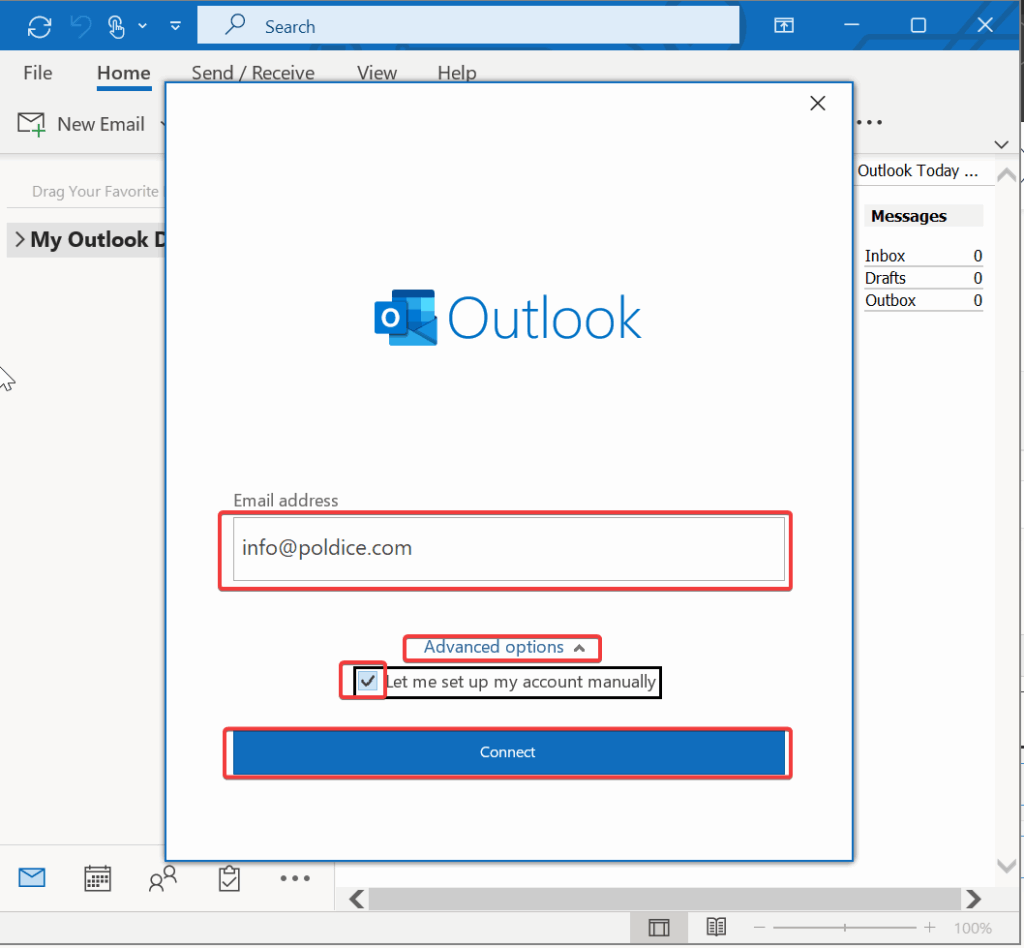
- In the Email tab, input the Email Address you want to Setup
- Choose Advanced Options, then
- Check the option to Let me Set Up My Account Manually
- Click Connect
4. Select Account Type
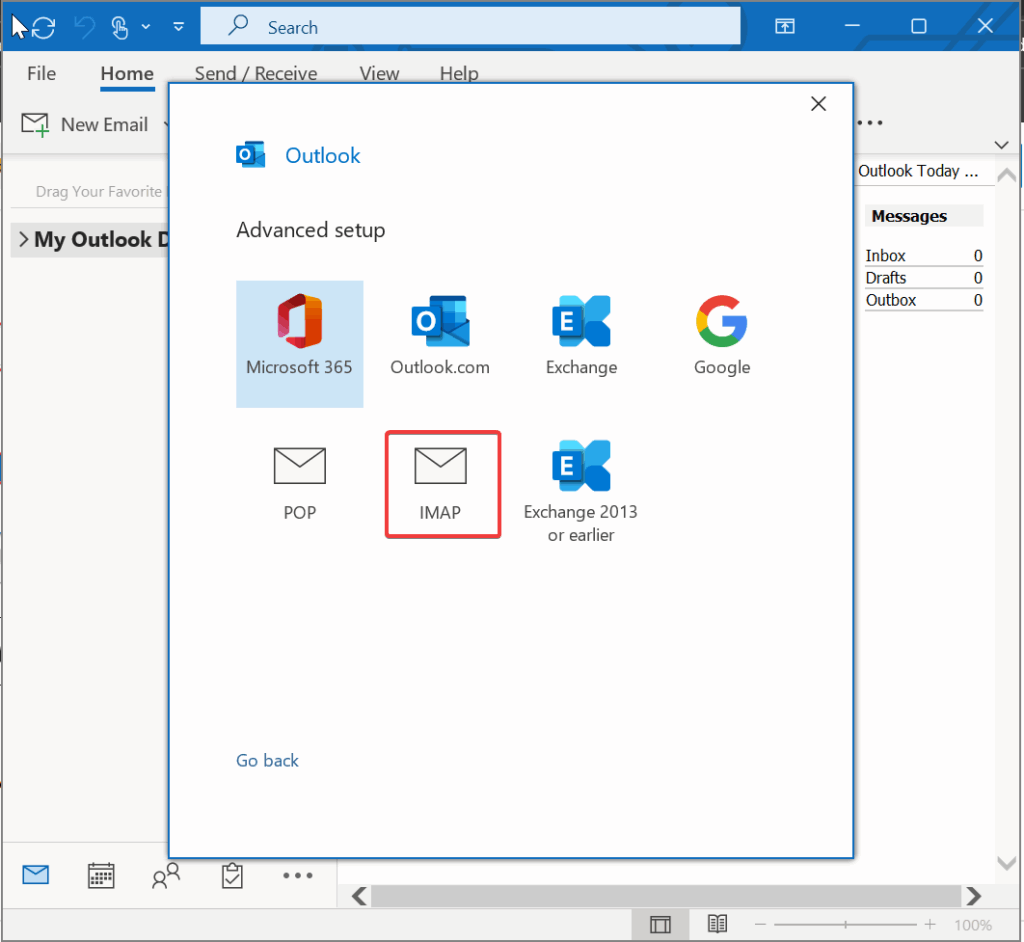
- Choose IMAP option from Advanced Setup
5. Enter User and Server Information
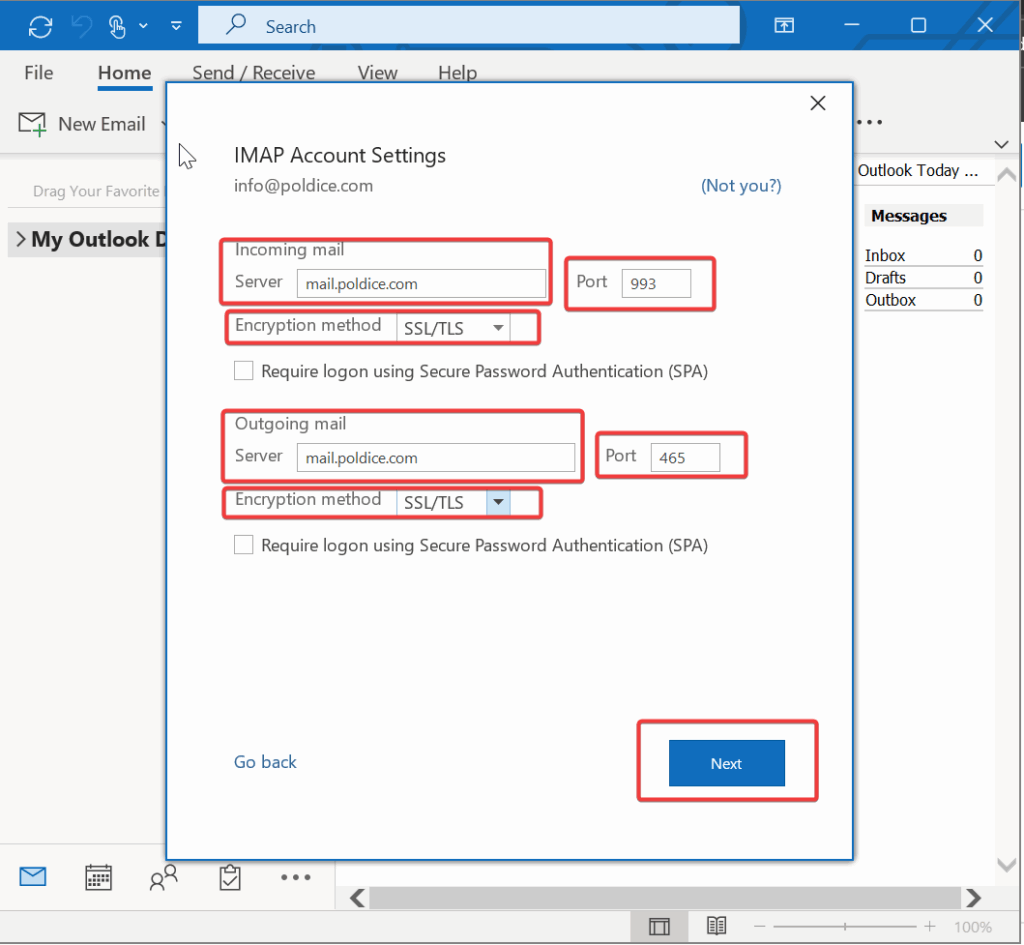
Fill in the following fields:
- Incoming mail server: e.g.,
mail.yourdomain.com - Incoming Server Port: 993
- Encryption Method: SSL/TLS
- Required Logon using Secure Password Authentication (optional)
- Outgoing mail server (SMTP): e.g.,
mail.yourdomain.com - Outgoing mail Server Port: 465
- Required Logon using Secure Password Authentication (optional)
- Click Next
6. Connect with Settings
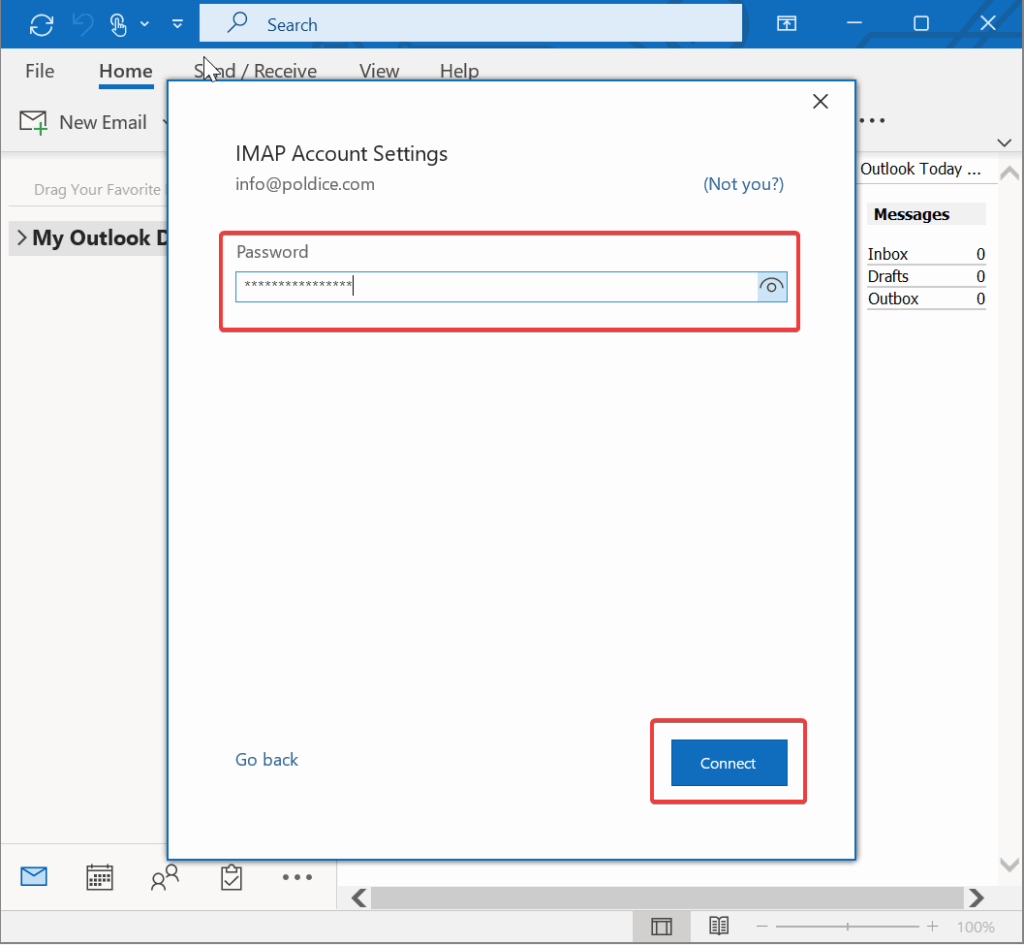
- Input the Email Account password…, then
- Click on Connect Button
7. Finish Setup
- Once Setup connection is Successful, you should get an Account Added message
- Click Done, to Close the Account Settings window and you can start sending and receiving emails right away..
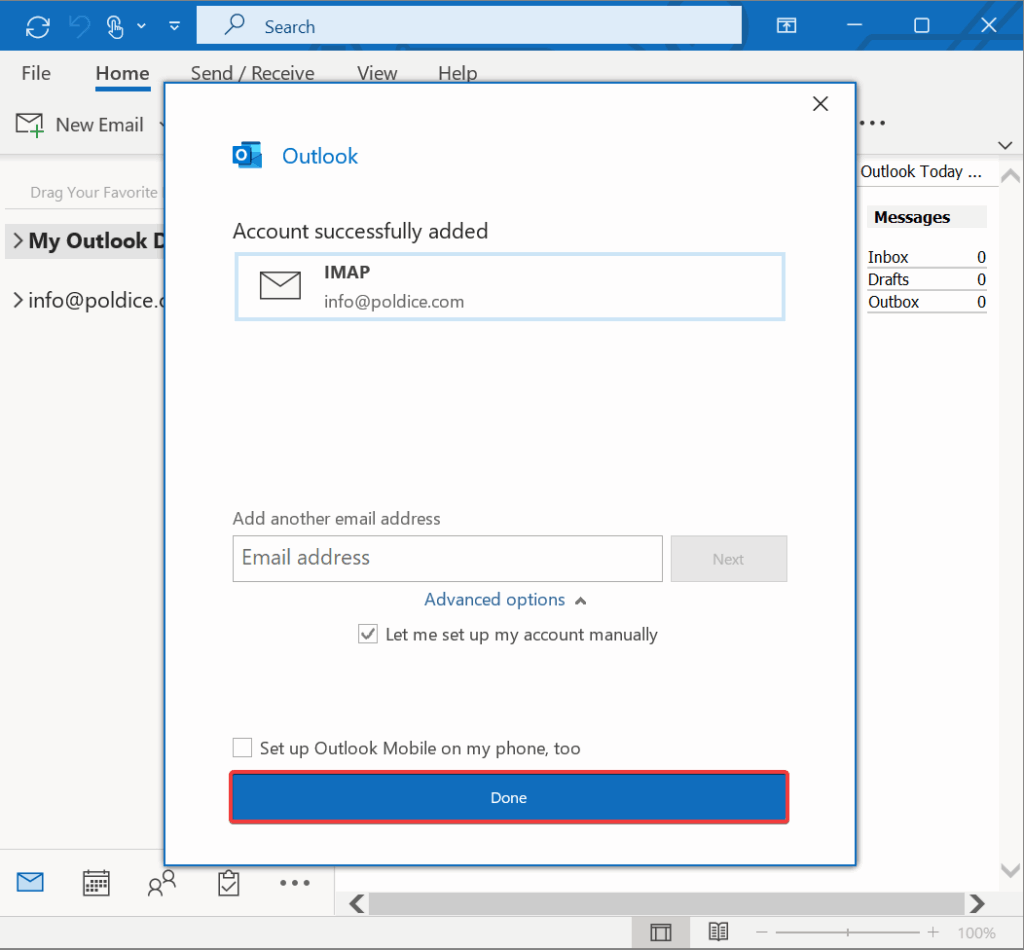
**Your email account is now configured in Microsoft Outlook [Classic]**