How to Increase PHP memory limit from the control panel

Description
If your website or application needs a higher PHP memory limit, you can increase it from your hosting control panel. This applies to the PHP process limit used by scripts such as WordPress, which is separate from the overall memory available to the hosting account.
Reasons
- You may need to change this setting if a site reports PHP memory exhaustion, requires more memory during heavy tasks, or if you notice the available PHP memory options are lower than expected.
- Available PHP memory limit options appear capped at 512MB even though higher values is being required by your site.
NB: It is important to distinguish between the account’s overall resource allocation and the PHP memory limit. The PHP memory limit is the maximum memory a single PHP process can use, not the amount the site will permanently reserve.
Solution
The PHP configuration issue has been corrected, and higher memory limit options are now available in the control panel.
- Log in to cPanel for the affected hosting account.
- Open Select PHP Version.
- Click Options.
- Find the memory_limit setting.
- Choose the required value, such as 1GB, from the available options.
- Changes are saved automatically once selected.
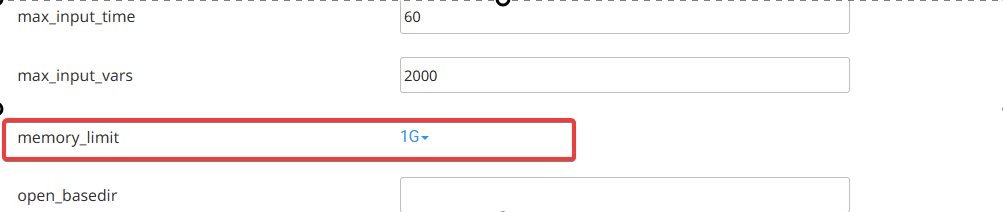
Available options may include 1GB, 2GB and 4GB, depending on the server configuration.
Setting the PHP memory limit to a higher value does not mean your site will always use that amount of memory. It only sets the maximum available to an individual PHP process if required.
If a standard WordPress site consistently needs more than 512MB of PHP memory, it is worth reviewing the theme, plugins, and site workload to confirm whether the usage is expected.