Installing WordPress Using WP Toolkit

What is WP Toolkit?
WordPress Manager (also known as WP Toolkit) is a management interface in cPanel that makes installing, configuring, and managing WordPress websites quick and easy – all from one dashboard.
Installing WordPress with WP Toolkit
Option 1: Via cPanel Sidebar
- Log in to cPanel
- Look for “WordPress Management” in the left sidebar menu
- Click on the option
Option 2: Via Search
- Log in to cPanel
- Use the search bar (top of page)
- Type “WordPress Management”
- Click on the result.

Step 2: Start Installation
Click the “Install” button (usually prominent at the top of the page)
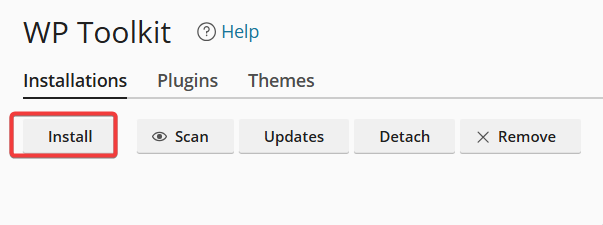
Step 3: Configure Your WordPress Site
Fill out the installation form:
| Field | What to Enter | Example |
| Installation Path | Where WordPress will be installed | /public_html (root domain) or /public_html/blog (subdirectory) |
| Domain | Select your domain from dropdown | poldice.com |
| Site Title | Your website name | “Top Of The World” |
| Site Description | Brief description (optional) | “A blog about web design” |
Step 4: Set Up Administrator Account
Create your WordPress login credentials:
- Username: Choose admin username (avoid “admin” for security)
- Password: Use a strong password (WP Toolkit can generate one)
- Email: Your email address for notifications
💡 Security Tip: Don’t use “admin” as your username – it’s the first thing hackers try!