Reset Your SFTP Password in Scout

You can reset your SFTP password in Scout in just a few clicks. This is useful if:
- You want to improve the security of your account, or
- You need to share SFTP login details with a trusted developer.
Login to your cloudabove account
- Go to cloudabove.com
- Login to your account
- Open your Scout control panel.

Open the Site settings
- In Scout, you’ll see a list of your Sites.
- Find the site you want to manage.
- Click the Settings cog icon beside that site.

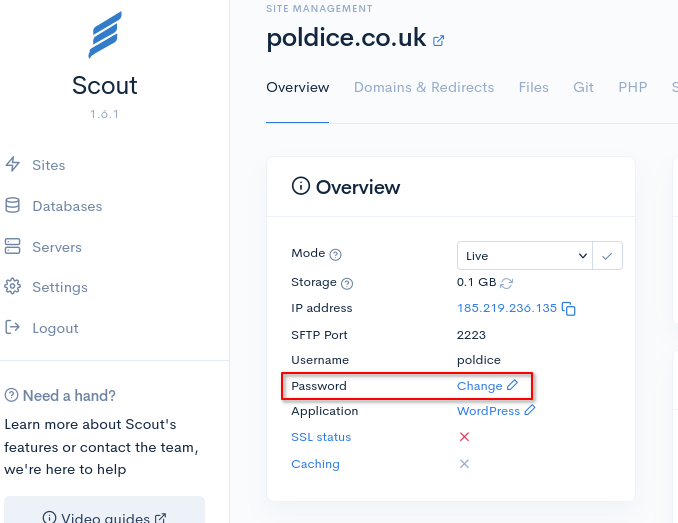
Go to the Password section
- On the left-hand side of the settings page, look for the Password section.
- Click the Change button in that section.
Reset your SFTP password
- You’ll be taken to the relevant password area.
- Click the Reset password button.
Scout will now automatically generate a new secure SFTP password for you.
Copy and store the new password
- After the password is reset, you’ll see your new password displayed.
- To the right of the password, click the small Copy icon.
Now is a good time to:
- Save the password in a Password Manager, or
- Share it securely with a trusted developer who will be managing the site.
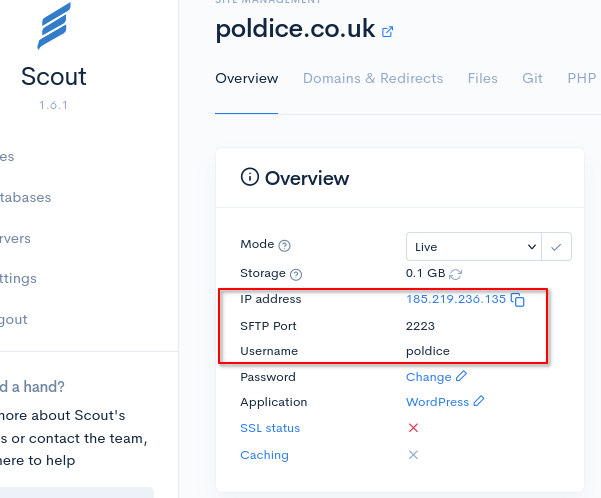
Note the SFTP connection details
In the same area, you’ll also see:
- The Username (top left)
- The Server IP address
- The SFTP Port
Developers will usually need all three of these details, along with the new password, to connect via SFTP.