Restricting WordPress admin access to Trusted IP Address

Description
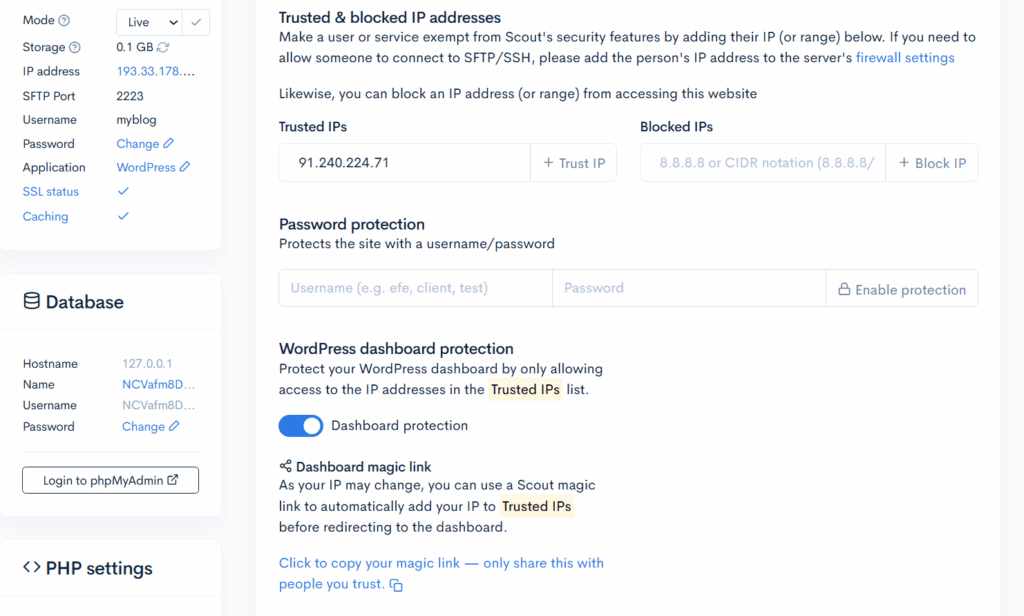
If you need to keep a WordPress website publicly accessible but prevent access to the WordPress administration area, you can enable WordPress dashboard protection in Scout Control Panel. This blocks access to the WordPress back end unless the visitor is connecting from an approved IP address.
Purpose
- The website itself needs to remain online for public visitors, but access to /wp-admin or the WordPress dashboard must be restricted. In this situation, disabling the site entirely is not suitable, because that would take the whole website offline rather than only limiting administrative access.
- Mitigating against brute force attack on your /wp-admin dashboard
Solution
- Log in to Scout Control Panel.
- Open the website you want to protect.
- Go to the Security section.
- Enable the WordPress dashboard protection option.
- Add the trusted public IP address or addresses that should still be allowed to access the WordPress admin area.
- Save the changes.
- Repeat this for any other WordPress sites on the server that need the same restriction.
Once enabled, the website remains live to the public, but WordPress admin access is restricted to the IP addresses you have explicitly allowed.

If you do not know your current public IP address, check it from your own connection or via whatismyipaddress.com then add it to the trusted list. If your IP address changes regularly, you may need to use the Magic Link to automatically whitelist IP.