Creating a wildcard redirect in Scout

You can use the asterisk / * symbol to create wildcard redirects in Scout, or use the Preferred domain feature.
What is a wildcard redirect?
A wildcard redirect preserves the page that was requested on the domain that the visitor is being redirected away from. For example, someone visiting domain.com/about would be automatically redirected to destination.com/about
Normally you would use a wildcard redirect when you’ve rebranded and you want to redirect all traffic/visitors to your new website/domain. You can also use wildcards to handle cases where content has moved.
For example, if you rebranded your company’s blog to be journal instead, you could redirect the existing blog pages with a pattern such as domain.com/blog/* to domain.com/journal/*
Another use case is when you need to redirect all visitors to a specific page.
Creating a wildcard redirect
- Login to Scout
- Go to Sites and then Settings besides the site that needs a wildcard redirect
- Select the Domains & Redirects tab
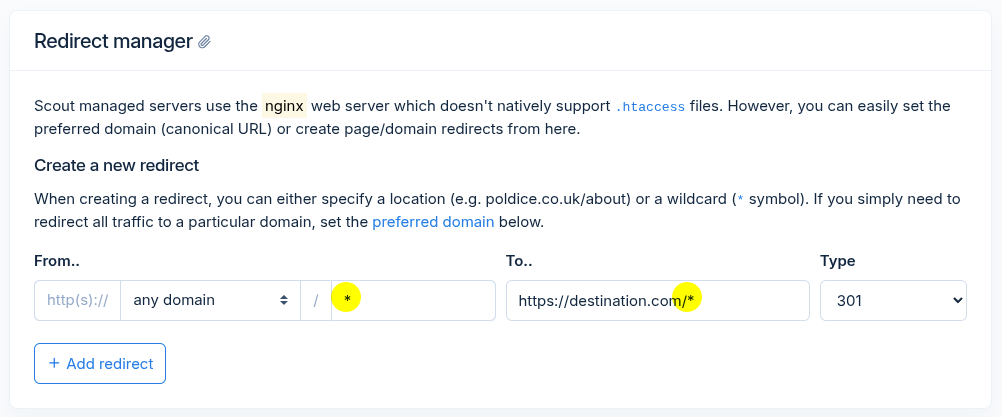
- Under the Redirect Manager, set the following:
- Select the From domain (or leave as any domain to redirect all variations and aliases)
- In From’s second field enter your pattern with the asterisk (e.g.
*or/blog/*) - Enter the destination address, optionally with the asterisk in the To field
- Click Add Redirect
What is a preferred domain?
Scout can also ensure your website is always using a specific domain by setting the Preferred domain under Domains & Redirects.
Preferred domains behave like wildcard redirects are useful for automatically redirecting alias domains to your website’s main domain. Likewise, if you prefer the www version of your domain (or the non-www version), you can use the preferred domain feature to enforce this variation of your address.