Changing a cPanel account password

As a Reseller, you will be given access to a WHM account which provides various tools for managing the hosting of your clients such as creating new cPanel accounts via WHM > Create a New Account, as well as listing any created accounts via WHM > List Accounts so you can find/access specific accounts all from within WHM.
Sometimes you’ll also need to change the password for a cPanel account, this could simply be because your client has forgotten the password, or for security to prevent unauthorised access etc.
1. Login to your WHM account. The login credentials for this would have been sent to you in an email when you first set up an account with us. If you do not have these credentials, please contact support for further assistance.
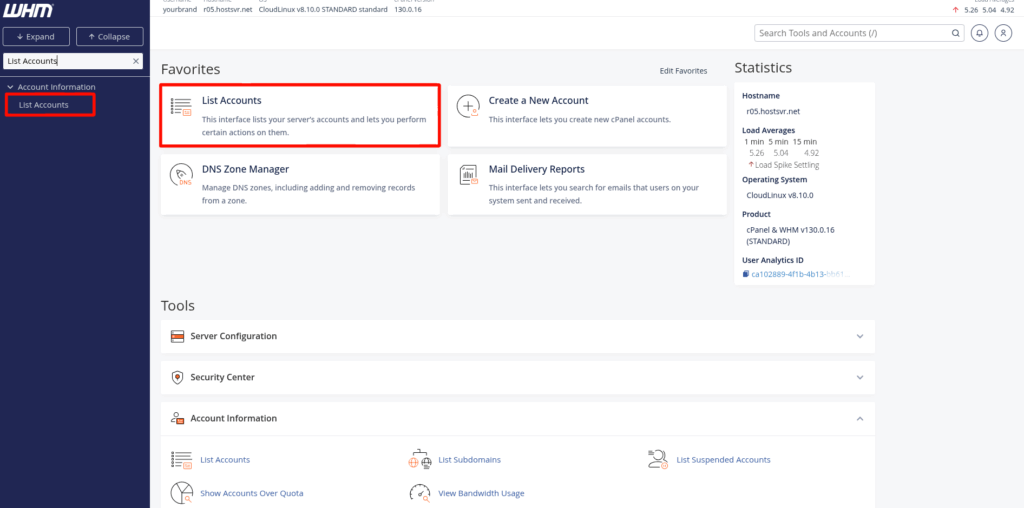
2. When you first login you should see an option labelled List Accounts. Alternatively, use the left hand menu to search for and navigate to List Accounts.
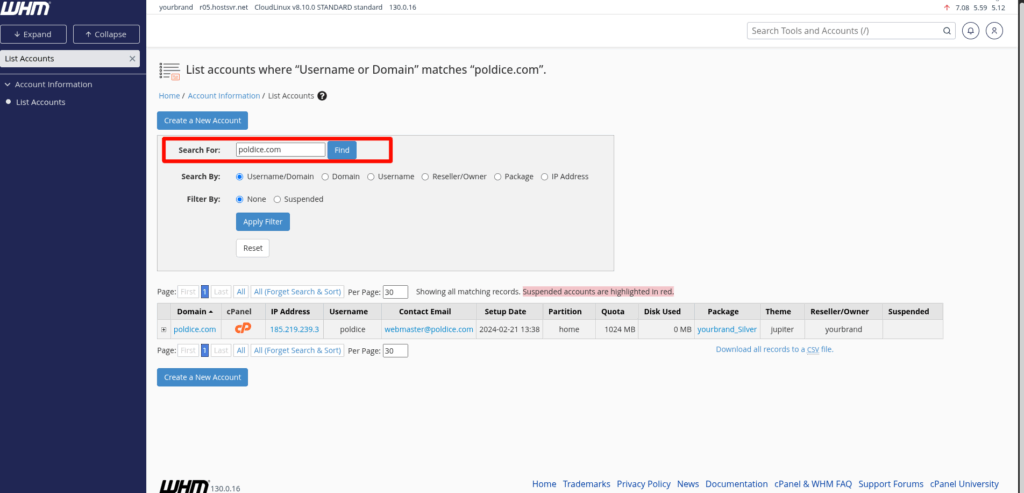
3. Use the Search For box, to search for the account you want to change the password for.
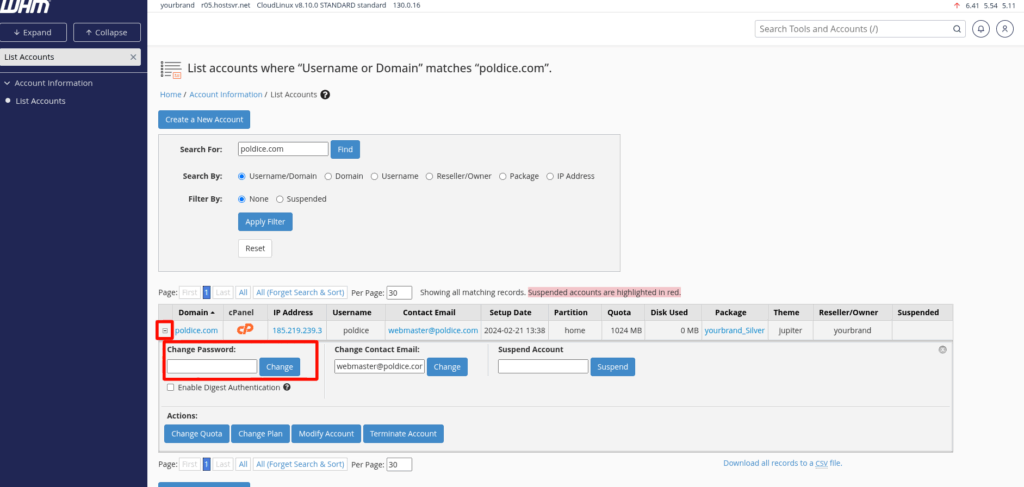
4. Click on the ‘+’ icon to the left hand side of where the domain is shown on the account, this will bring up an option to reset the password. Once you’ve entered the new password, click Change to save it.
That’s it, you’ve now changed the password for the cPanel account.
If you are running into any issues or have any further questions or concerns, please don’t hesitate to get in touch.