Creating an Out of Office auto response in cPanel

When you’re away from your inbox whether for vacation, holidays, or business travel, setting up an out-of-office autoresponse ensures that anyone who contacts you knows when to expect a reply and who to reach in your absence.
What Is an Autoresponder?
An autoresponder is an automatic email reply that informs senders you’re unavailable. It typically includes:
- The dates you’ll be away
- When you’ll return
- Alternative contacts (if applicable)
Steps to Set Up an Autoresponder in cPanel
1. Log in to your cPanel account
- Use the login details provided when your hosting account was created.
- If you’ve lost access, contact cloudabove.com/contact-us for assistance.
2. Navigate to the ‘Autoresponders’ section
- You’ll find this under the Email category on the cPanel dashboard.
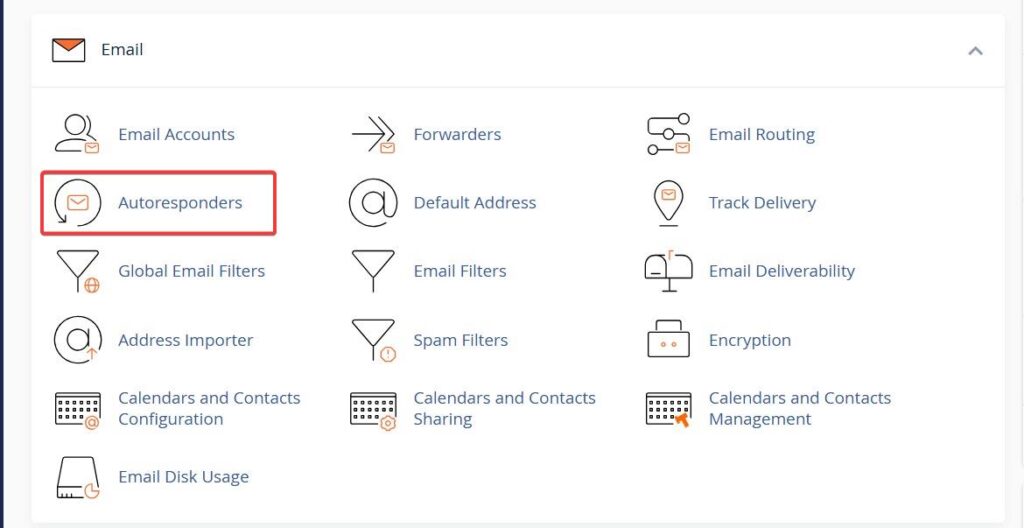
3. Click Add Autoresponder
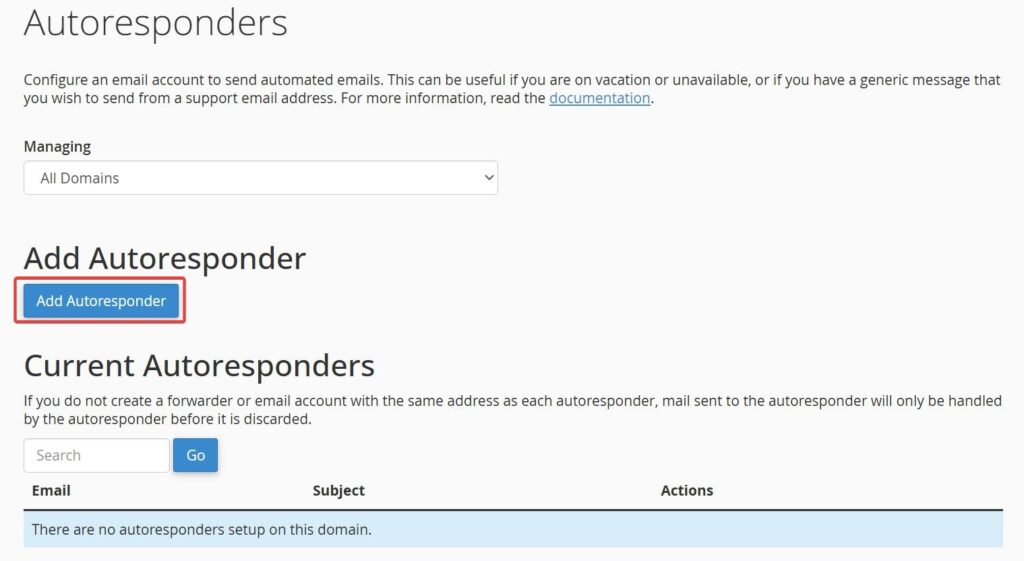
4. Fill out the autoresponder form
- Interval: Set to
24to avoid sending multiple replies to the same sender within a day. - Email: Choose the email address you want to set the autoresponse for.
- From: Your name or department.
- Subject: Example: “Out of Office: [Your Name]”
- Body: Write a clear message;
“Thank you for your email. I am currently out of the office with limited access to email until [Return Date].
For urgent matters, please contact [Alternative Contact Name/Email]. Otherwise, I will respond to your message upon my return.” - Start / Stop: You can leave this as Immediately and Never, or choose Custom to schedule the exact dates and times you want the autoresponder to automatically turn on and off.
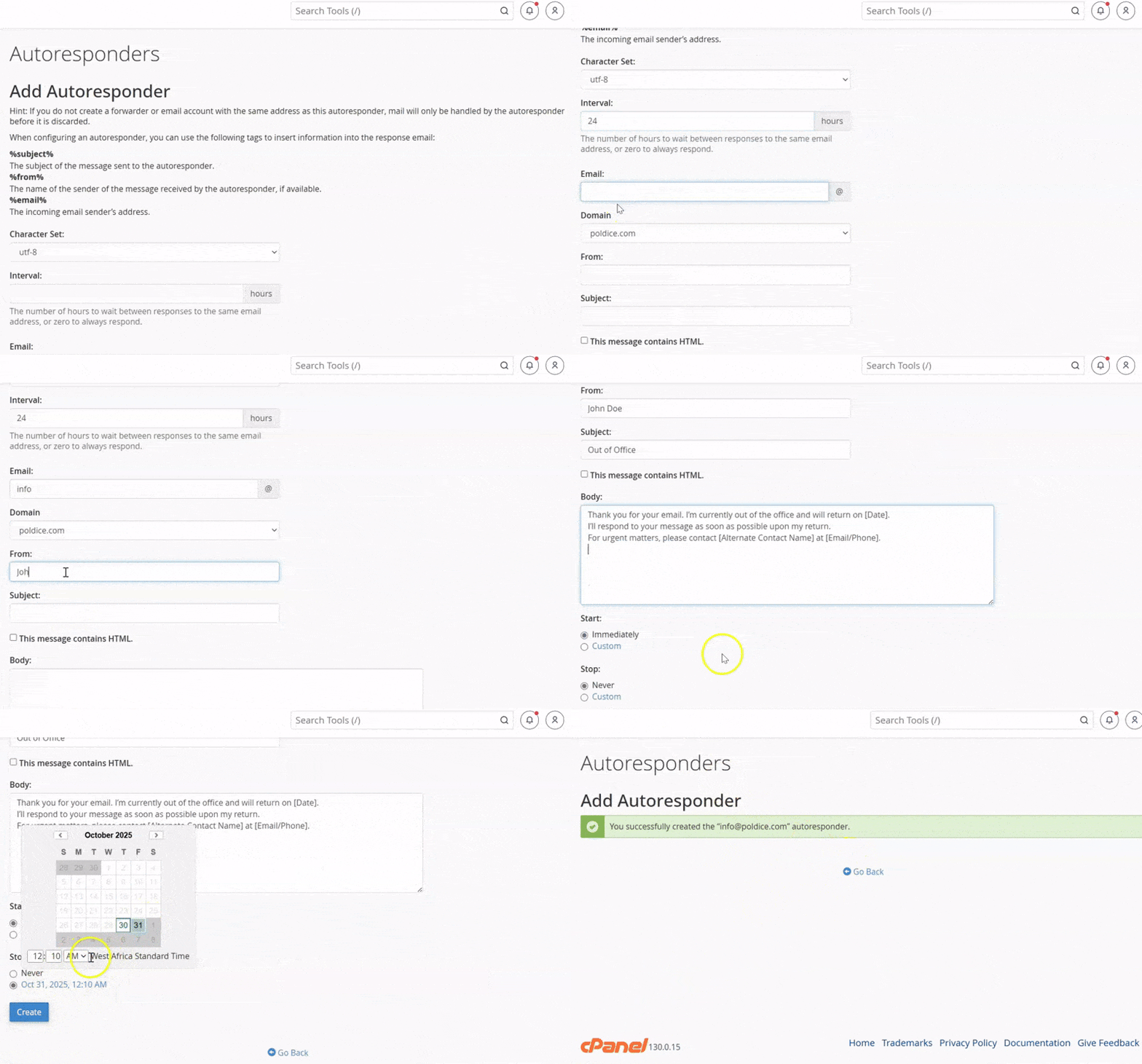
Step 5: Save your changes
- Scroll to the bottom and click the Create/Modify button.
That’s it! Your out-of-office responder is now active and will handle incoming emails while you are away.