How to Back Up Your cPanel Hosting Before Cancelling

If you have asked us to cancel your web hosting, please make sure you have a copy of everything you need before the plan is terminated. Once an account has been removed from our servers, we may not be able to recover your website, databases or emails.
This guide covers two ways to take a backup from cPanel. Method 1 (the Backup Wizard) is the easiest and gives you everything in one file. Method 2 lets you download individual parts of your account straight away.
What should I back up?
| Item | Where it lives |
|---|---|
| Website files | Your home directory (usually the public_html folder) |
| Databases (e.g. WordPress) | MySQL databases, backed up separately from your files |
| Emails | Your home directory (the mail folder) |
| Email forwarders and filters | Account configuration, backed up separately |
A full backup (Method 1) includes all of the above. If you use Method 2, make sure you download your home directory and every database.
Method 1: Using the Backup Wizard (recommended)
This creates a single compressed file containing your whole account, which you can keep as an archive or hand to a new hosting provider to restore.
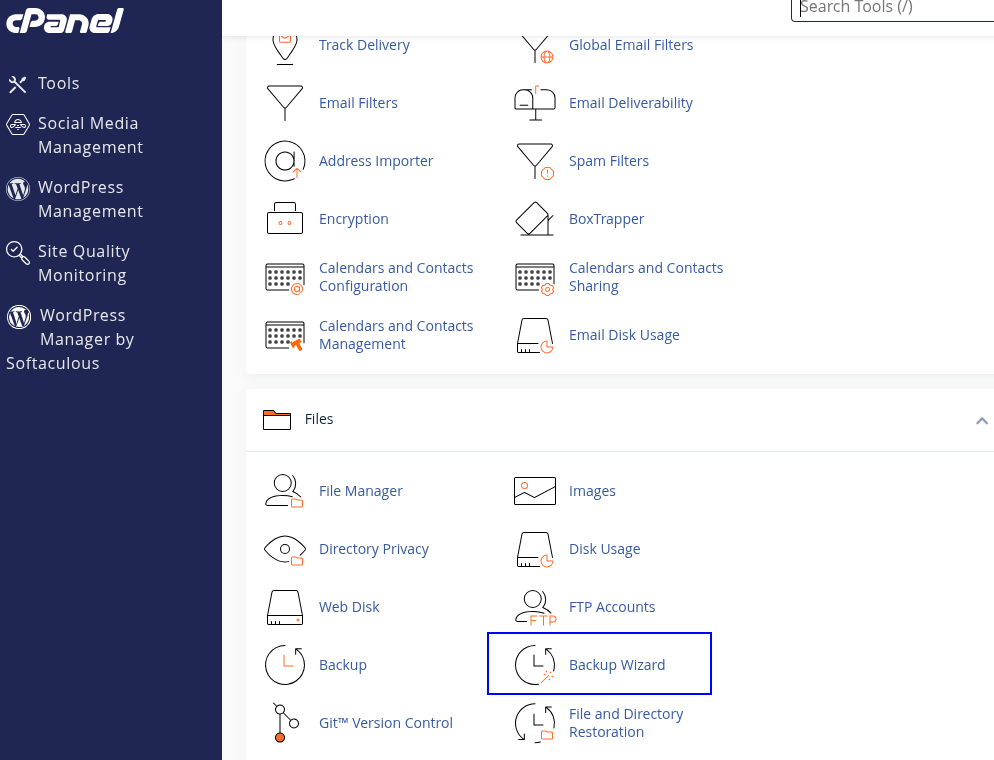
- Log in to your cPanel account.
- In the Files section, click Backup Wizard (or type “Backup Wizard” into the search bar at the top).
- Under Back Up, click the Back Up button.
- On the next screen, click Full Backup.
- Leave Backup Destination set to Home Directory.
- Check the Email Address box shows an address you can access, so you are notified when the backup is ready. Leave Include integration links unticked.
- Click Generate Backup. This can take anything from a few minutes to over an hour, depending on the size of your account.
- Once you receive the completion email, go back to Backup Wizard > Back Up > Full Backup. Your file will be listed under Backups Available for Download with a name like
backup-10.13.2026_12-00-00_username.tar.gz. - Click the file name to download it to your computer.
Note: A full backup cannot be restored through the cPanel interface itself. It is designed for keeping a copy of your account or for moving to another server, and most hosting providers using cPanel can restore it for you.
Tip: The backup file is created inside your account, so it uses some of your disk space. If your account is close to its disk limit, the backup may fail. If that happens, use Method 2 instead.
Method 2: Downloading partial backups
This method lets you download your files and databases separately. Downloads start immediately, there is no waiting for an email, and nothing extra is stored in your account.
- Log in to your cPanel account.
- In the Files section, click Backup.
- Scroll down to Partial Backups.
- Under Download a Home Directory Backup, click Home Directory. This downloads all of your website files and emails as a
.tar.gzfile. - Under Download a Database Backup, click the name of each database listed. Each one downloads as a separate
.sql.gzfile. - If you use email forwarders or filters, click the entries listed under Download Email Forwarders and Download Email Filters to save those too.
Note: If your site runs on WordPress (or another CMS), you need both the home directory backup and the database backup. The files alone will not bring your site back.
Before you confirm your cancellation
- Check your downloads: Make sure each file has finished downloading and is a sensible size.
.tar.gzfiles can be opened with 7-Zip on Windows, or by double-clicking on a Mac. - Keep a second copy: Store your backup somewhere safe, such as an external drive or cloud storage, as well as on your computer.
- Emails in your mail app: If you use IMAP, deleting the hosting will also remove the emails from your devices. Your backup contains the raw mail files, but you may also want to copy important messages into a local folder in your email program.
- Need help? If your backup fails or your account is too large to download, please open a support ticket before your cancellation date and we will be happy to help.