How to Issue/renew Let’s Encrypt SSL on Plesk

1. Log in to Plesk
- Access your Plesk control panel using the login details provided by your hosting provider.
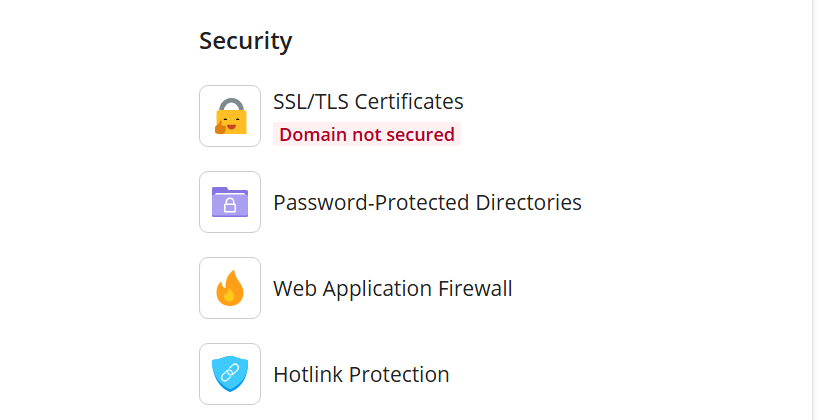
- From the left‑hand menu, select Websites & Domains.
2. Open the Let’s Encrypt Extension
- Locate the domain you want to secure.
- Click SSL/TLS Certificates.
- If you see an existing Let’s Encrypt certificate, you can renew or reissue it from this screen.
3. Issue New Certificate
If no certificate is installed:
- Click Install under the Let’s Encrypt section.
- Select the options you want to secure:
- Include “www” subdomain
- Secure webmail (e.g., webmail.example.com)
- Wildcard certificate (requires DNS‑01 validation)
- Click Get it free.
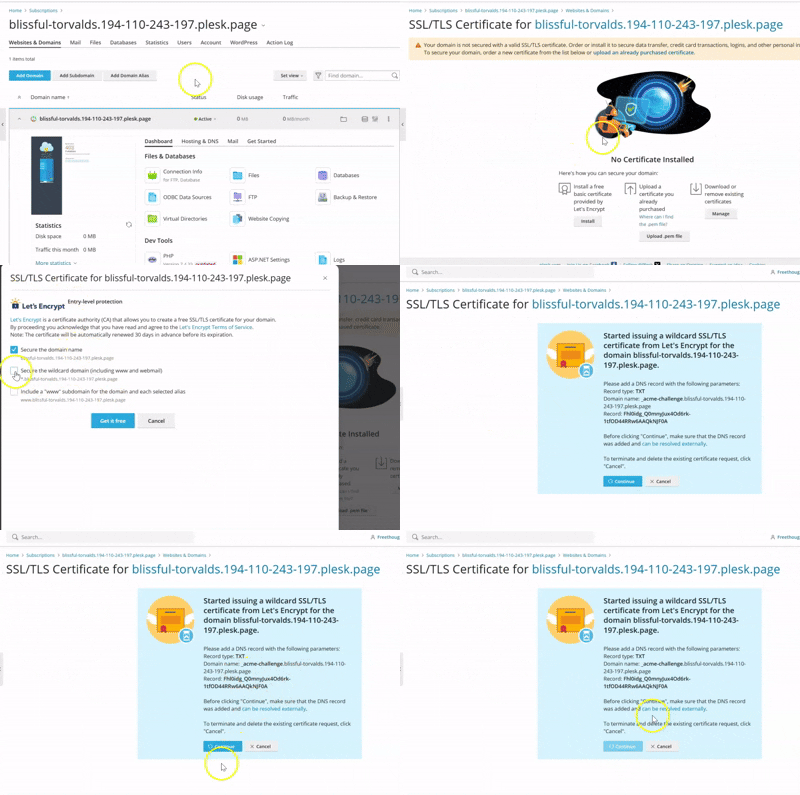
Plesk will automatically request and install the certificate.
4. Renew an Existing Let’s Encrypt Certificate
Let’s Encrypt certificates renew automatically, but if renewal fails or you want to force a renewal:
- Go to Websites & Domains → SSL/TLS Certificates.
- Select your existing Let’s Encrypt certificate.
- Click Reissue Certificate.
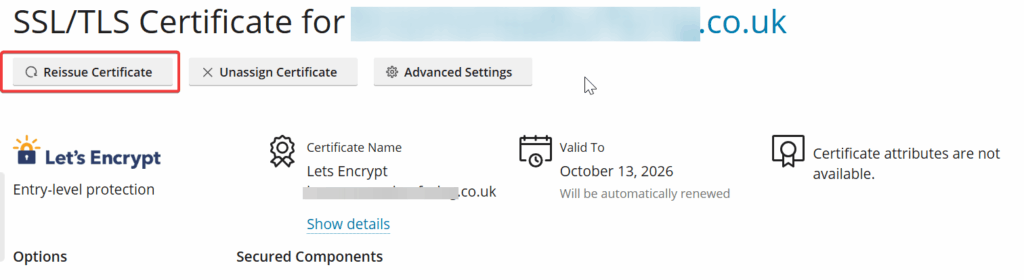
Plesk will attempt to validate your domain and renew the certificate.