JetBackup – Restoring or Downloading Files from a Home Directory

JetBackup keeps automatic backups of your entire home directory. Unlike a full account restore, the home directory option lets you select individual files and folders to restore — so you can recover a single deleted file or revert a specific directory without touching the rest of your account.
If you need to restore your entire account (files, databases, email, and all configuration), see the full account restore guide instead.
Accessing JetBackup
cPanel
Step 1. Log in to cPanel.
Step 2. Scroll to the Files section and click JetBackup, or use the search bar at the top of cPanel to find it.

Plesk
Step 1. Log in to Plesk.
Step 2. Click on your domain under Websites & Domains, then scroll to the Files & Databases section and click JetBackup 5.

Restoring Files from a Home Directory Backup
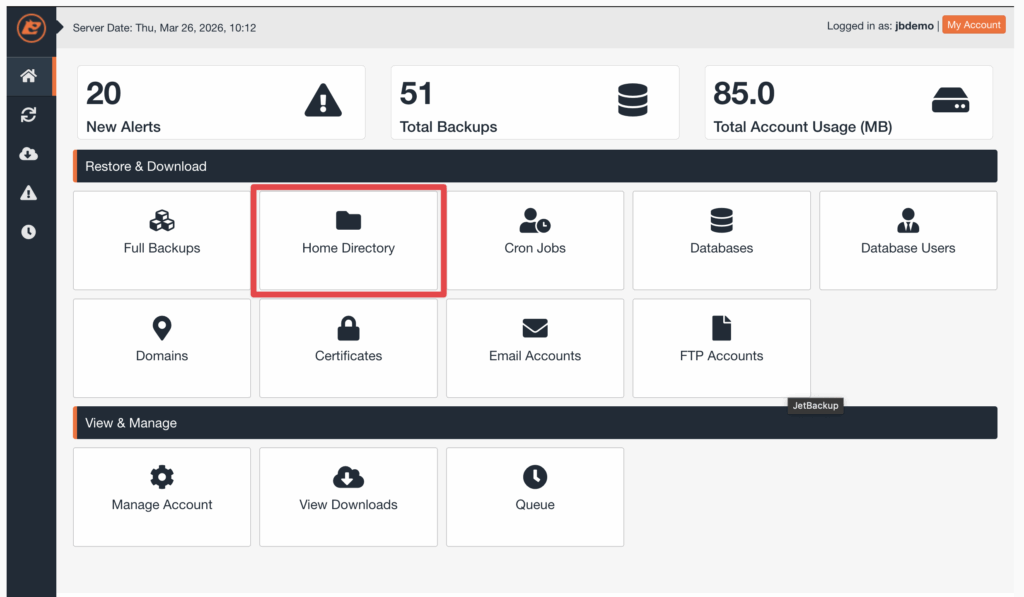
Step 1. From the JetBackup dashboard, click the Home Directory icon under “Restore & Download.”
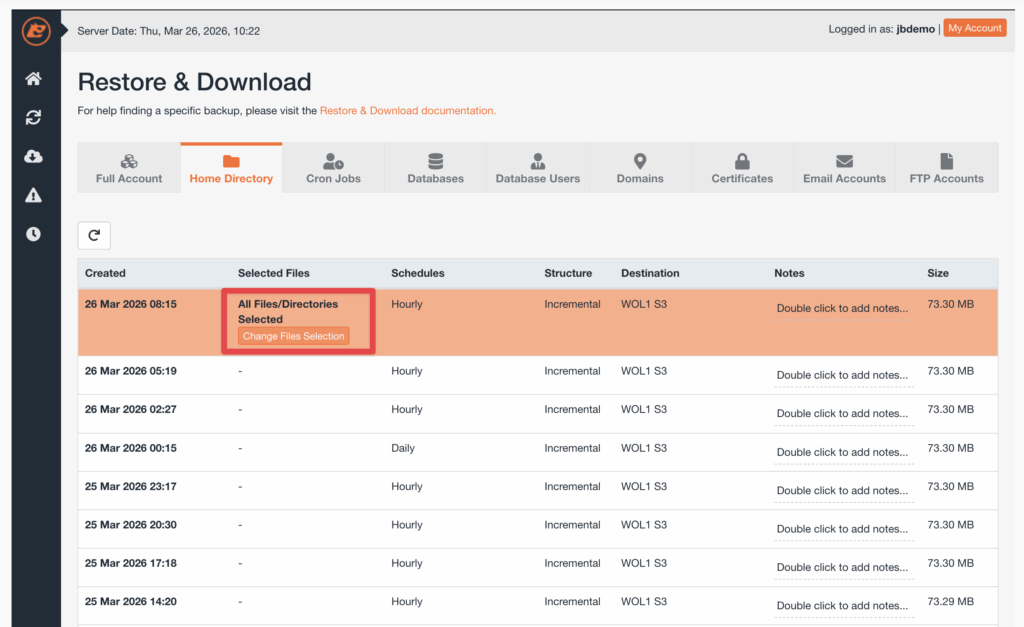
Step 2. You’ll see a list of available backup dates. Select the date you want to restore from, then click Change File Selection.
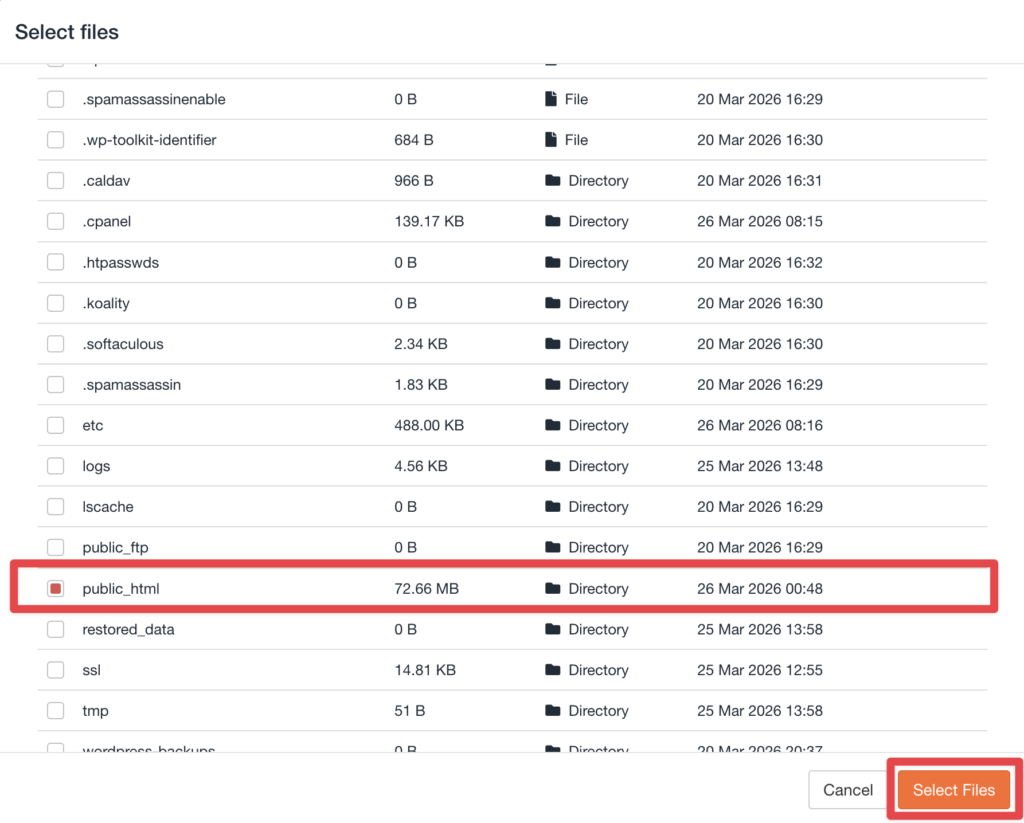
Step 3. A file browser will open showing the contents of your home directory as it was at the selected backup date. Tick the boxes next to the files or directories you want to restore, then click Select Files.
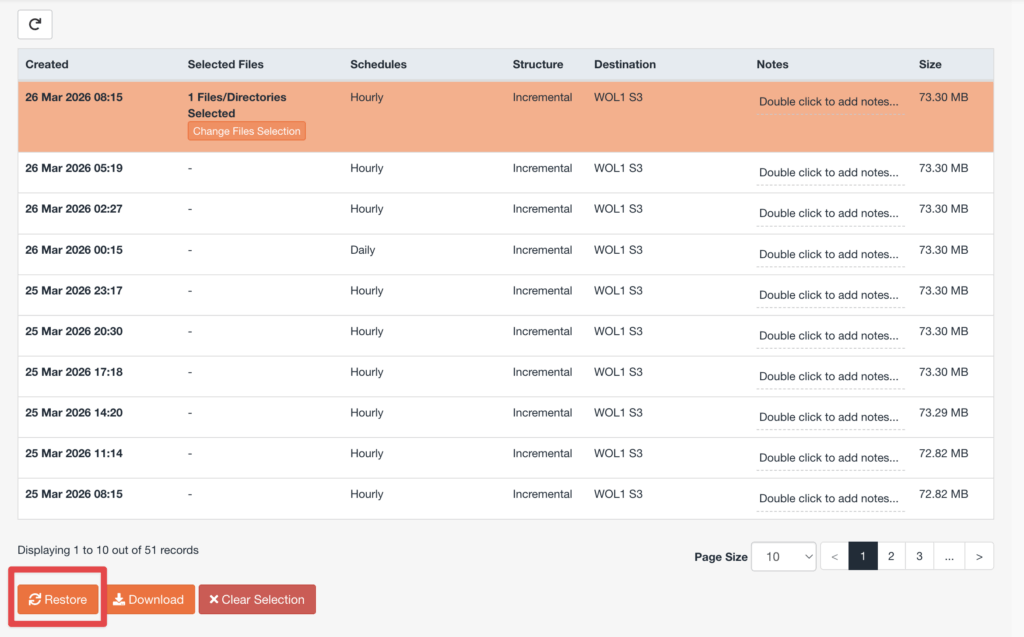
Step 4. Click the Restore button.
Step 5. On the confirmation screen, click Restore Selected Items.
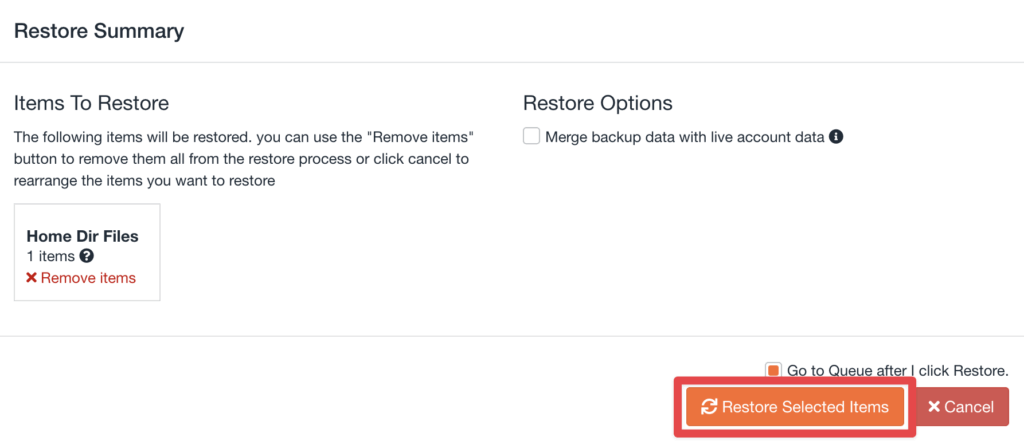
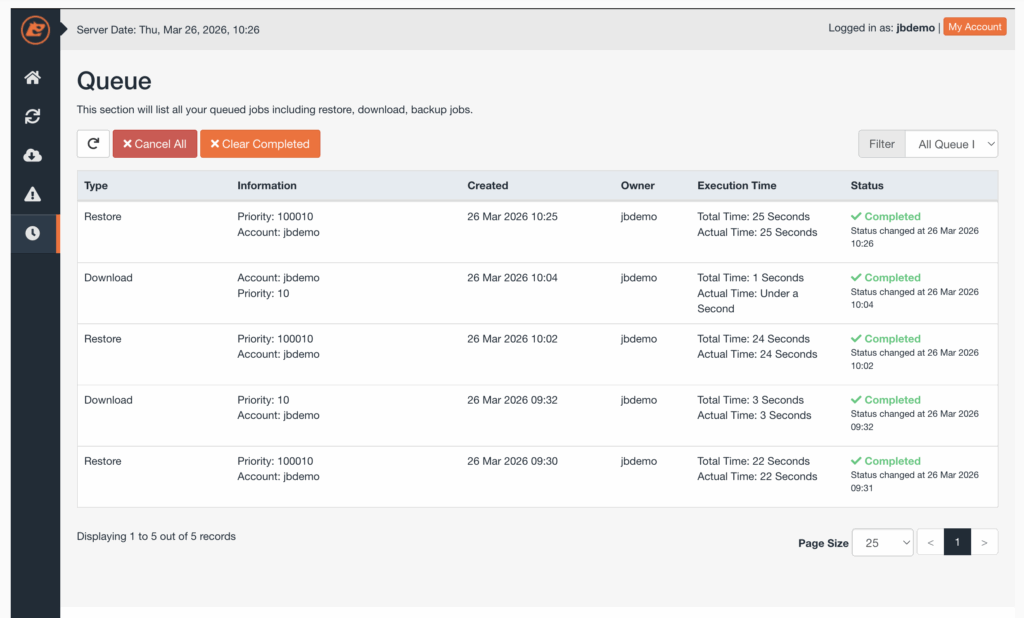
Step 6. The restore job will be queued. Click the Queue button on the JetBackup dashboard to monitor progress. The job will show a status of Completed once the files have been restored.
Downloading Files from a Home Directory Backup
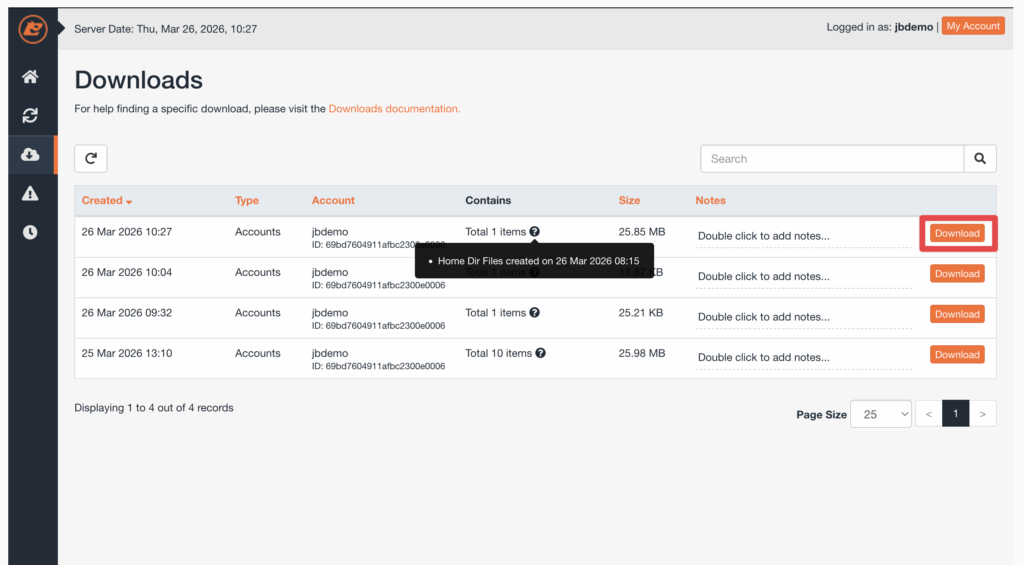
The process is the same as restoring — select the backup date, choose your files via Change File Selection, but click Download instead of Restore. Confirm with Download Selected Items, then check the Queue for progress. Once the job shows Completed, go to the Downloads tab to save the archive to your local device.
Monitoring Jobs and Notifications
All restore and download operations run as background jobs. You can check their progress at any time by clicking the Queue button on the JetBackup dashboard.
To receive email notifications when jobs complete, click the Settings icon on the JetBackup dashboard and enable notifications.