Speeding up WordPress with the LiteSpeed Cache plugin

Summary: If your website runs on WordPress, we strongly recommend installing the free LiteSpeed Cache plugin. Because our servers run on LiteSpeed technology, the plugin talks directly to the web server and gives you server-level caching that standard caching plugins simply can’t match. This article explains what it does, why it matters, how to install it and a few tips to get the most out of it.
What is LiteSpeed Cache?
LiteSpeed Cache for WordPress is a free, all-in-one performance plugin built by LiteSpeed Technologies, the company behind the LiteSpeed Web Server that powers our Shared hosting.
Most caching plugins work inside WordPress, using PHP to generate and serve cached pages. LiteSpeed Cache is different: it hands caching over to the web server itself. When a visitor requests a cached page, LiteSpeed serves it straight away without loading WordPress or PHP at all. The result is a much faster site and far less load on your hosting account.
Why you should use it (and why it’s better with us)
- Server-level page caching: The plugin’s most powerful feature, full-page caching, works best on LiteSpeed-powered servers. Hosting with us means you get it out of the box, at no extra cost.
- Faster load times: Cached pages are served in milliseconds, improving the experience for visitors and helping reduce bounce rates.
- Better Core Web Vitals and SEO: Faster pages help with Google’s page experience signals (LCP, INP, CLS), which can support your search rankings.
- Lower resource usage: Because cached pages bypass PHP and the database, your site uses less CPU and memory. This helps you stay comfortably within your plan’s limits and handle traffic spikes (e.g. a sale or marketing campaign) without slowing down.
- WooCommerce aware: It understands shopping carts, checkouts and logged-in customers, so dynamic content stays correct while the rest of the shop is cached.
- Smart, automatic purging: When you publish or update a post, product or page, only the affected pages are cleared from cache, so visitors always see fresh content.
- One plugin, many optimisations: Beyond caching, it includes image optimisation (including WebP), lazy loading, CSS/JS minification, browser caching and database clean-up, so you can often replace several plugins with one.
- It’s free: The core plugin is completely free. Some optional extras (like image optimisation and critical CSS generation) use LiteSpeed’s QUIC.cloud service, which has a free tier.
Before you start
- If you have a staging site, it’s a good idea to test there first.
- Remove other caching plugins. Running two caching plugins at once causes conflicts, broken layouts and stale pages. Deactivate and delete plugins such as WP Rocket, W3 Total Cache, WP Super Cache, WP Fastest Cache, Autoptimize or SG Optimizer before activating LiteSpeed Cache.
How to install LiteSpeed Cache
Option 1: From the WordPress dashboard (recommended)
- Log in to your WordPress admin area (usually
yourdomain.com/wp-admin). - Go to Plugins → Add New Plugin.
- In the search box, type LiteSpeed Cache.
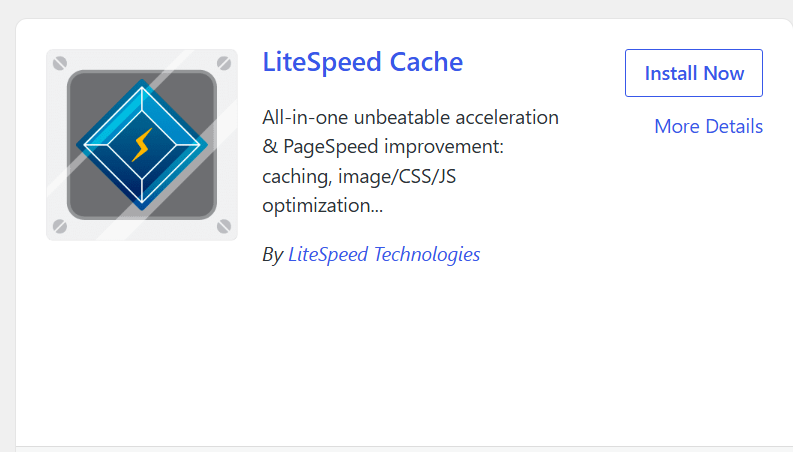
- Find the plugin by LiteSpeed Technologies and click Install Now.
- Once installed, click Activate.
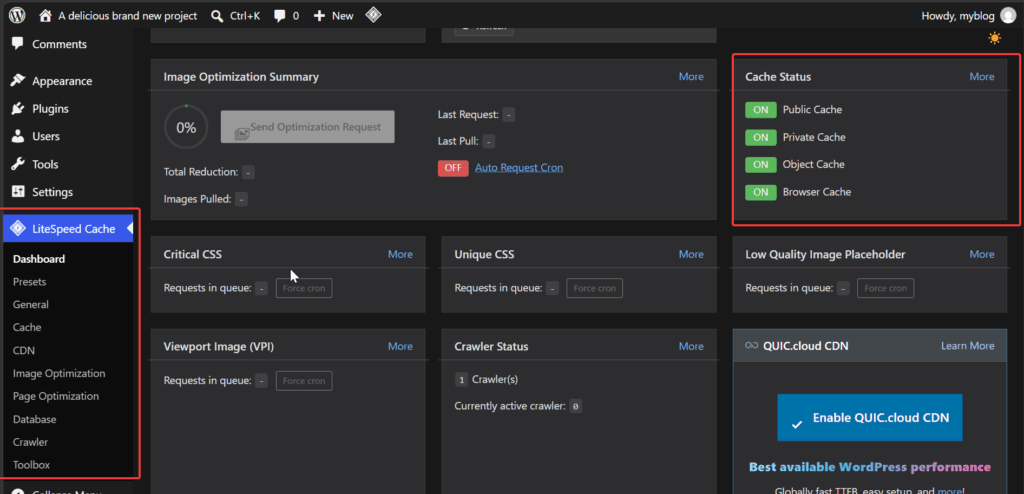
- A new LiteSpeed Cache menu will appear in your WordPress sidebar.
That’s it: page caching is enabled by default as soon as the plugin is activated on our servers.
Option 2: Using WP-CLI (for developers)
If you have SSH access, you can install and activate the plugin in one command from your site’s root directory:
wp plugin install litespeed-cache --activate
Recommended setup
The default settings are safe and work well for most sites. If you’d like to go further, the plugin includes ready-made Presets:
- Go to LiteSpeed Cache → Presets.
- Choose a preset:
- Essentials or Basic: safe for almost every site. Start here.
- Advanced: adds more front-end optimisation. Great for most sites, but test afterwards.
- Aggressive / Extreme: maximum optimisation, but more likely to affect how some themes or plugins behave. Only use these if you’re comfortable testing thoroughly.
- Click Apply Preset. If something breaks, you can restore your previous settings from the Presets page.
How to check it’s working
- Open your website in a private/incognito window (caching is not normally applied to logged-in administrators).
- Open your browser’s developer tools (press F12) and go to the Network tab.
- Reload the page and click the first request (your page’s address).
- Under Response Headers, look for
x-litespeed-cache:hitmeans the page was served from cache.missmeans the page has just been cached; reload once more and it should showhit.- If the header is missing entirely, check the plugin is activated and that no other caching plugin is installed.
Tips & tricks
- Turn on optimisations one at a time. Features like CSS/JS combine, minify and “load JS deferred” give great results but can occasionally break a theme or slider. Enable them one by one and check your site after each change.
- Purge the cache after big changes. After changing your theme, menus or site-wide settings, use the LiteSpeed Cache icon in the top admin bar → Purge All.
- Connect to QUIC.cloud (free). Linking your site under LiteSpeed Cache → General unlocks image optimisation (WebP), critical CSS and other online services. The free tier is plenty for most small and medium sites.
- Optimise your images. Under Image Optimization, send your images for optimisation and enable WebP replacement to serve smaller images automatically.
- Enable lazy loading for images and iframes (Page Optimization → Media Settings) so off-screen content only loads when needed.
- Clean up your database occasionally from LiteSpeed Cache → Database, removing post revisions, spam comments and expired transients. Take a backup first.
- Exclude pages that must always be live. If a page shows personalised or real-time content (e.g. a booking form or members’ area not detected automatically), add its URL under Cache → Excludes.
- Leave the Crawler off unless you need it. The crawler pre-warms your cache but uses server resources. For most sites the normal cache is more than enough.
- Using Cloudflare or another CDN? That’s fine, but avoid enabling full-page caching in two places at once without testing, as it can make purging less reliable.
- Keep the plugin updated. LiteSpeed releases regular performance and security updates.
Troubleshooting
- My changes aren’t showing on the site: Purge the cache from the admin bar (LiteSpeed Cache → Purge All) and hard-refresh your browser (Ctrl + F5 on Windows, Cmd + Shift + R on Mac).
- My layout looks broken after changing settings: Undo the last optimisation you enabled (usually CSS/JS combine or minify), then purge the cache. You can also go to Toolbox → Import/Export → Reset to return to default settings.
- Something else doesn’t look right: Temporarily deactivate the plugin to confirm whether it’s the cause, then get in touch with our support team and we’ll be happy to help.
Need help?
If you’d like a hand installing or configuring LiteSpeed Cache, just open a support ticket and our team will take a look.