Enable Bad Bot Blocking Protection & Rate Limiting Mode

Keep automated attackers off your site. Scout blocks malicious bots by default, but you can fine-tune protection or add exceptions for legitimate bots you trust.
Step 1: Open Security Settings
Log into cloudabove.com and open your Scout Control Panel.
Click the Settings icon beside the site you want to protect.

Step 2: Go to Security
Select the “Security” tab from the top menu.
Bad Bot Blocker (Enabled by Default)
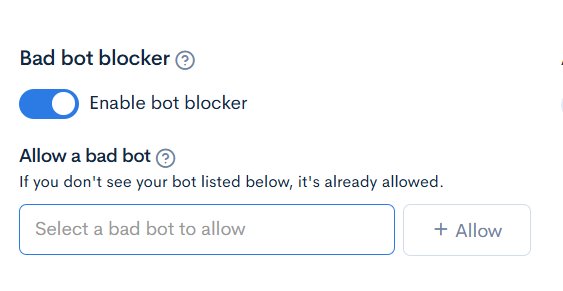
You’ll see the “Bad Bot Blocker” section. The toggle is already on—Scout protects your site automatically, blocking malicious bots and improving performance.
Allow Friendly Bots
If you use a service with a bot that Scout doesn’t recognize, you can whitelist it. Scroll down beneath the toggle to find the exceptions area.
Select a known crawler from the dropdown list, or enter a custom bot name and click “Allow”.
Scout will then let that specific bot through.
Disable If Needed
To turn off bot blocking temporarily (usually for troubleshooting), toggle it off. We recommend keeping it on for ongoing protection.
Rate Limiting Mode (For Heavy Bot Traffic)
If bots are still hammering your site, scroll down to “Rate Limiting Mode”. This adds a second layer of protection.
By default, rate limiting is disabled. You can choose:
- Relaxed — Allows up to 10 requests per second per visitor
- Strict — Allows up to 2 requests per second per visitor
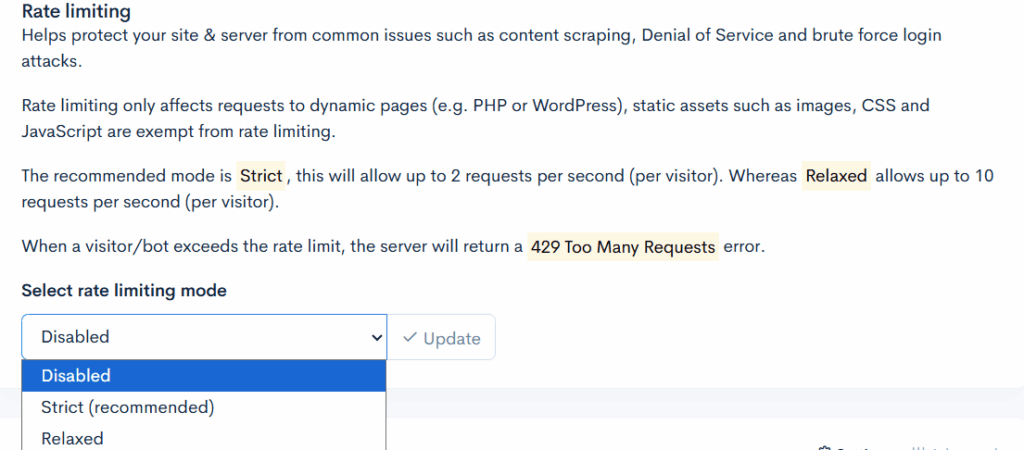
Pick the mode that fits your site’s needs. If you’re unsure, start with Relaxed and move to Strict if issues persist.
Bot protection isn’t a luxury—it’s essential. Scout gives you security features that many other platforms charge extra for.