Enabling AutoSSL for a Domain on a Reseller Account

Your domain isn’t showing an SSL certificate? If you’re on a reseller account, AutoSSL can issue and install one automatically. Here’s how to get it set up.
What’s Happening
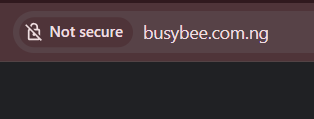
Without an active SSL certificate, your domain won’t work over HTTPS. Visitors will see browser security warnings or the connection will be marked as insecure. AutoSSL fixes this by automatically issuing and installing a certificate for you.
Signs You Need This
- Your domain shows no valid SSL certificate in the control panel
- Browser displays a security warning when visiting your site over HTTPS
- The padlock icon is missing or marked as insecure
Get AutoSSL Enabled
1. Confirm your domain name Identify the exact domain that needs SSL coverage.
2. Contact support Ask us to enable or issue AutoSSL for the domain. If it hasn’t been generated automatically, we can trigger it for you.
3. Verify the certificate Once AutoSSL has run, we’ll confirm that the certificate is active for your domain in the control panel.
4. Test HTTPS Visit your domain over HTTPS (https://yoursite.com) and confirm:
- The padlock icon appears in your browser
- No security warnings are shown
- The page loads normally
5. Double-check with an SSL tool (optional) If you want extra confirmation, use a free SSL checker tool to verify the certificate is installed correctly and covers your domain.
You’re Done
Once AutoSSL is active, your domain is secure. The certificate will renew automatically, so you don’t need to worry about it expiring.