Adding and Modifying DNS in cPanel

Managing DNS (Domain Name System) records is essential for directing traffic to your website, email servers, and other services. cPanel provides a user-friendly interface called the Zone Editor to help you add, edit, and manage DNS records easily.
What Are DNS Records?
DNS records are instructions stored in authoritative DNS servers that provide information about a domain, such as:
- A Record: Maps a domain to an IPv4 address.
- AAAA Record: Maps a domain to an IPv6 address.
- CNAME Record: Points a domain to another domain (alias).
- MX Record: Specifies mail servers for email delivery.
- TXT Record: Holds text information, often used for verification and SPF settings.
- SRV Record: Defines services available for a domain.
- NS Record: Specifies authoritative name servers for the domain.
Accessing the Zone Editor in cPanel To Manage DNS Records
- Log in to cPanel using your hosting credentials provided by cloudabove.
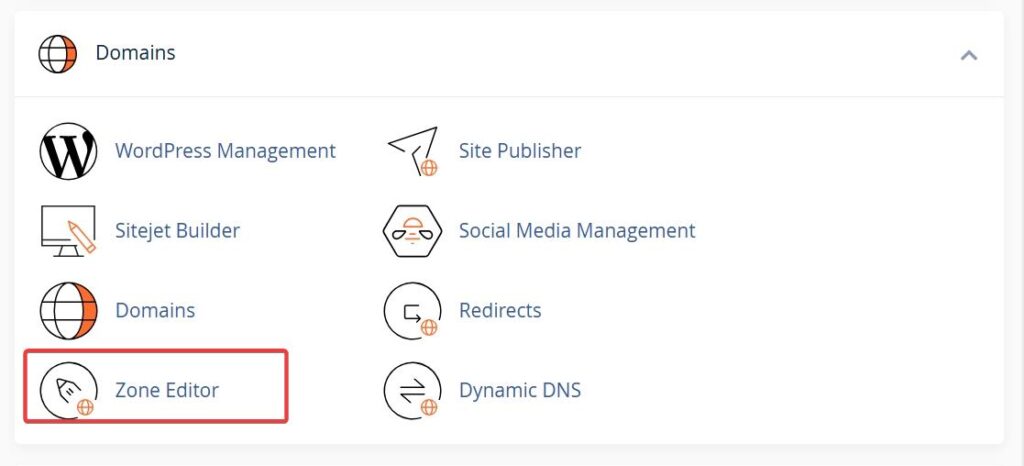
- Scroll down to the Domains section.
- Click on Zone Editor.
Adding a DNS Record
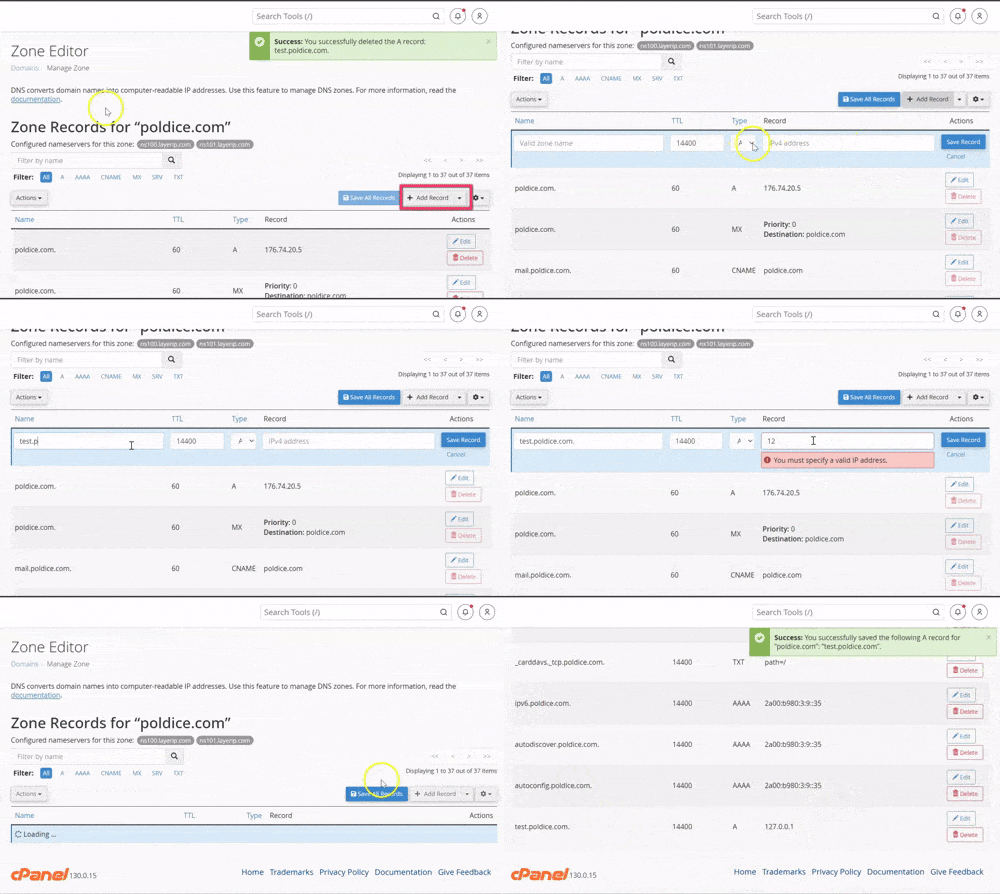
- In the Zone Editor, locate your domain and click Manage.
- Click the Add Record dropdown and select the type of record you want to add (e.g., A, CNAME, MX).
- Fill in the required fields:
- Name: The subdomain or domain (e.g.,
www,mail, orexample.com.). - TTL: Time to Live (default is usually fine).
- Record-specific fields:
- For A Record: IP address
- For CNAME: Target domain
- For MX: Priority and mail server
- Name: The subdomain or domain (e.g.,
- Click Add Record to save.
Modifying an Existing DNS Record
- In the Zone Editor, click Manage next to your domain.
- Locate the record you want to edit using the search bar or by scrolling.
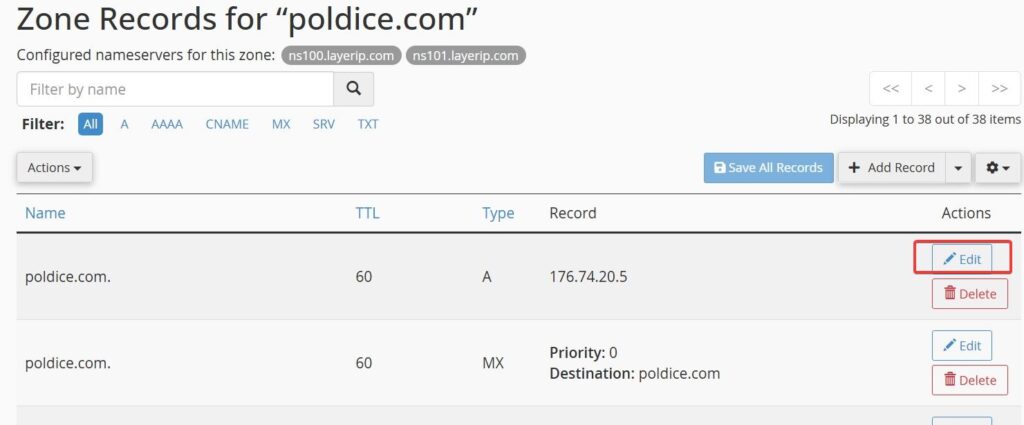
- Click Edit next to the record.
- Update the necessary fields.
- Click Save Record to apply changes.
Deleting a DNS Record
- In the Zone Editor, click Manage next to your domain
- Find the record you want to remove.
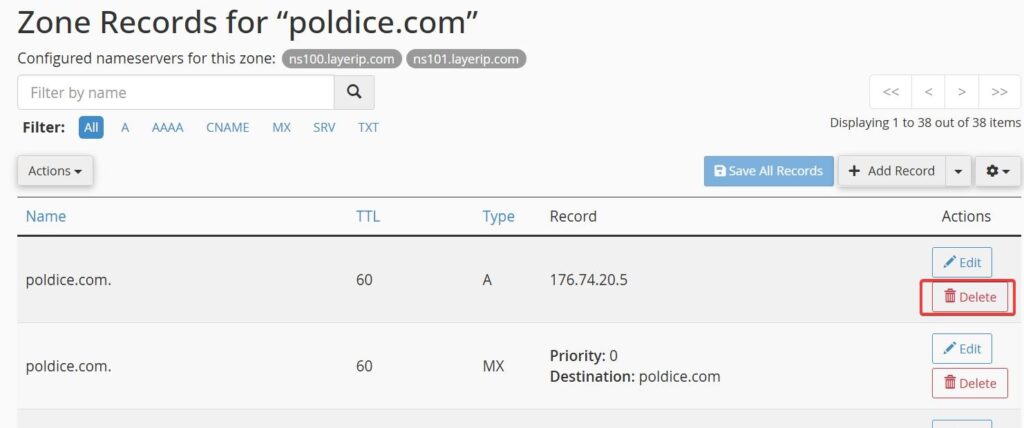
- Click Delete and confirm.
Recommended Best Practice
- Always double-check IP addresses and domain names before saving.
- Use TTL values wisely; lower TTLs allow faster propagation of changes.
- Avoid deleting records unless you’re sure they’re not needed.
- Changes may take time to propagate across the internet (usually up to 24–48 hours).